15 Dual Monitor Home Office Ideas for Maximum Productivity
Innovative dual monitor setups can boost your productivity by 42%, but these 15 game-changing configurations will completely transform your workspace.
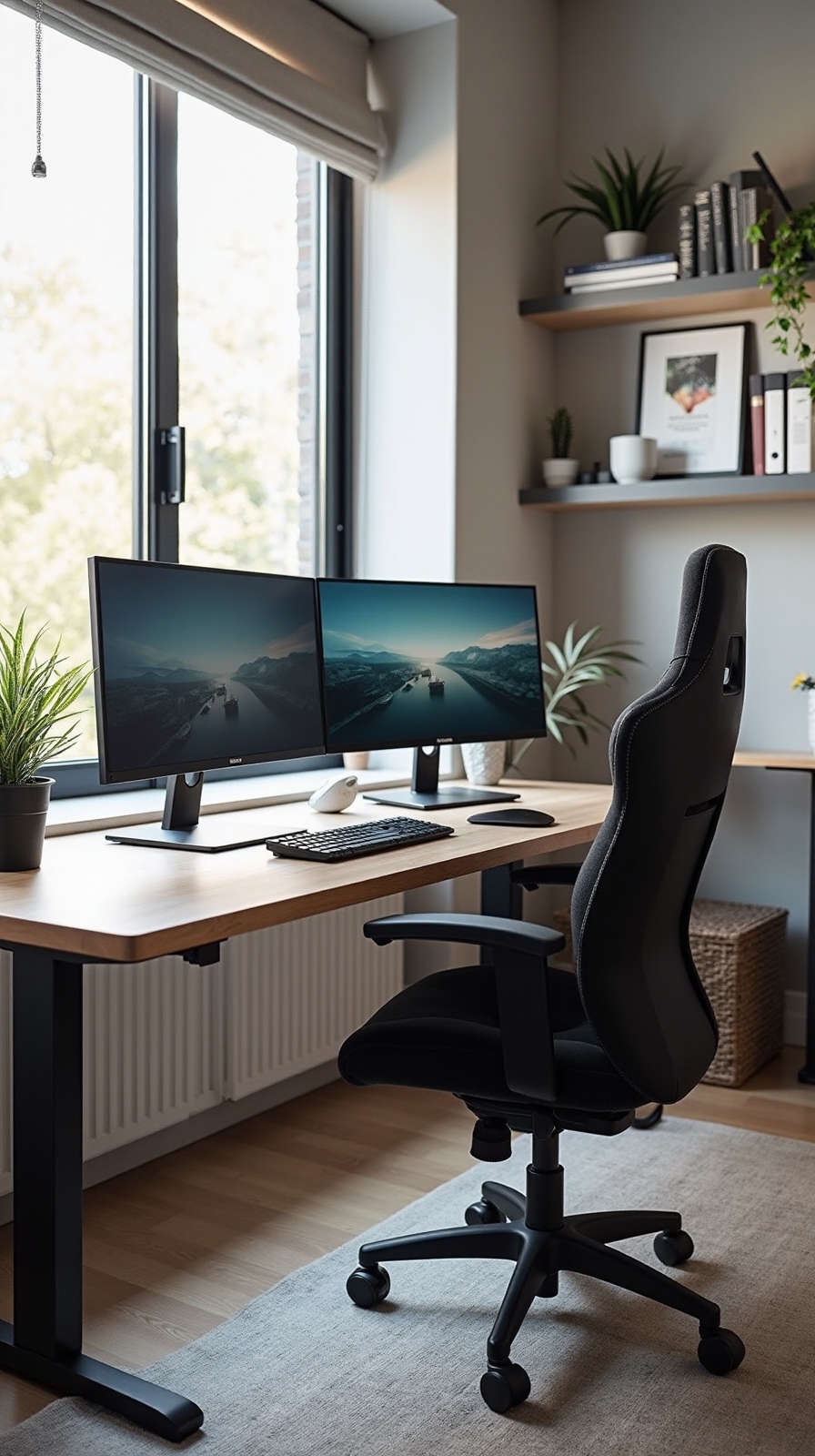
You’re about to revolutionize your workspace productivity with dual monitor setups that go far beyond basic side-by-side arrangements. Whether you’re working with a tight budget or designing a premium ergonomic station, the right dual monitor configuration can eliminate constant window switching and amplify your efficiency by up to 42%. From vertical-horizontal combinations that transform content creation to portable setups for flexible working, these strategic arrangements will reshape how you approach daily tasks and unveil capabilities you didn’t know existed.
The Classic Side-by-Side Setup for Seamless Workflow
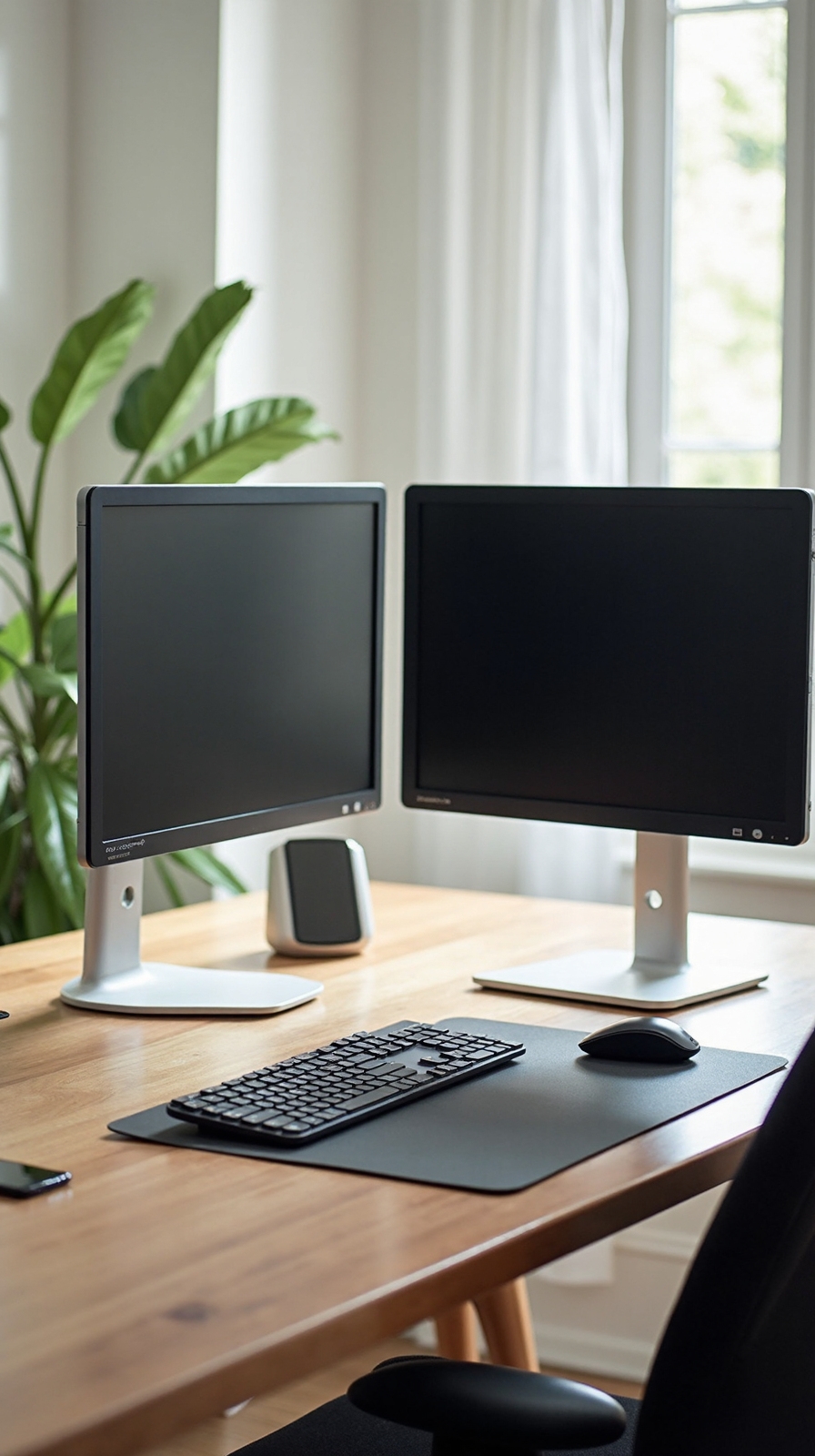
The classic side-by-side dual monitor configuration remains the most popular choice among remote workers and home office professionals. This arrangement gives you complete control over your workspace, allowing you to break free from the constraints of single-screen limitations.
Position your monitors at equal heights with minimal gaps between bezels for smooth mouse movement. You’ll achieve focused task organization by dedicating one screen to primary work while using the secondary display for reference materials, communication apps, or research.
This setup excels at efficient window management, letting you drag applications seamlessly between screens without overlapping windows or constant minimizing. Place your dominant monitor directly in front of you, angling the secondary screen slightly inward for comfortable viewing and reduced neck strain during extended work sessions.
Vertical and Horizontal Monitor Combination for Content Creation
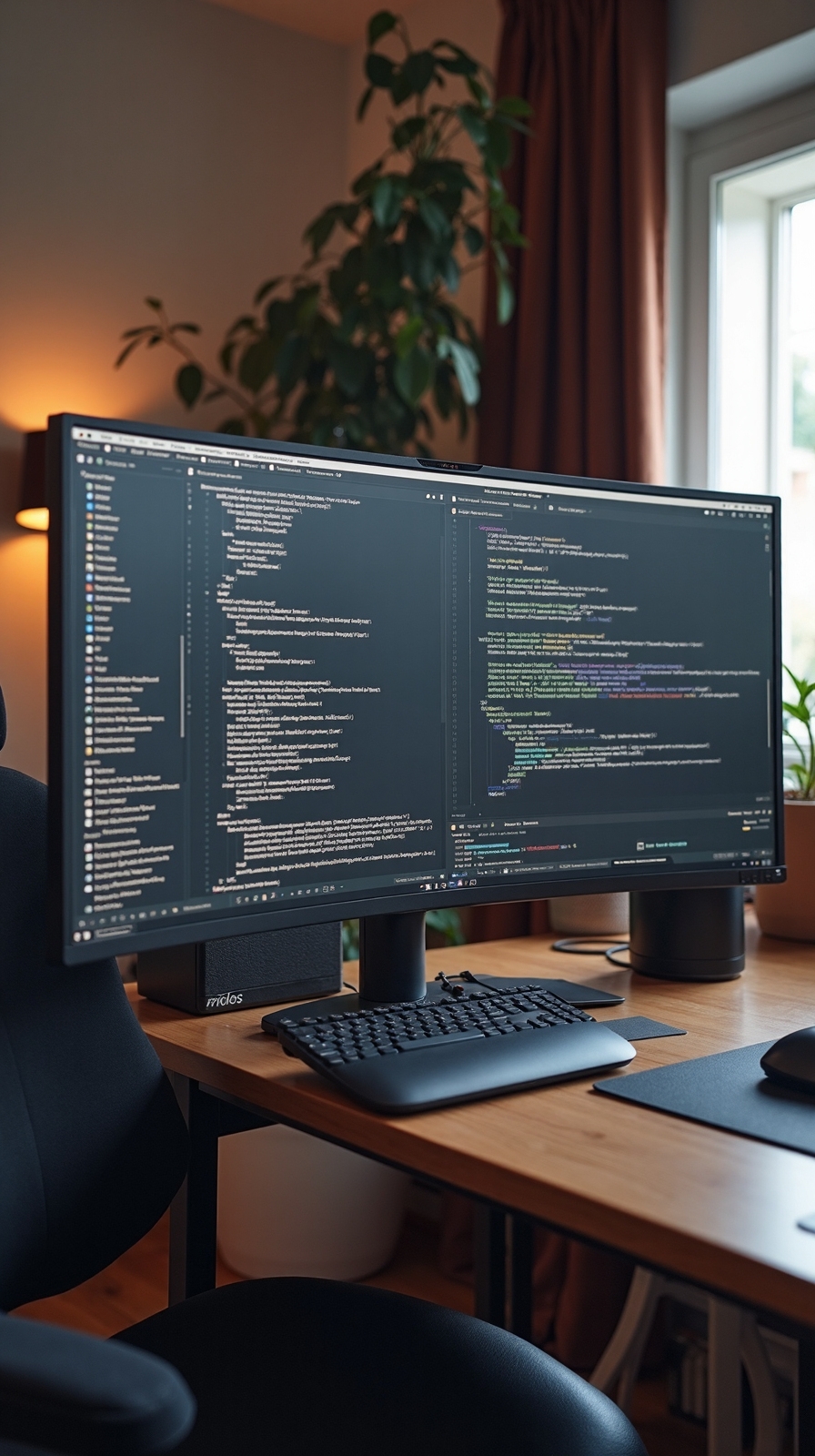
When you’re working with code, documents, or creative projects, positioning one monitor vertically alongside a horizontal display creates an ideal content creation environment. This dual monitor orientation maximizes your screen real estate while giving you the flexibility to work exactly how you want.
The vertical monitor becomes perfect for reading long documents, viewing entire code files, or managing social media feeds without constant scrolling. Meanwhile, your horizontal display handles video editing, graphic design, or web browsing with its natural widescreen format.
Proper monitor height adjustment guarantees both screens align at eye level, preventing neck strain during extended creative sessions. You’ll find this setup especially beneficial for writing, programming, and design work where you need to reference multiple sources simultaneously while maintaining focus on your primary project.
Corner Desk Dual Monitor Configuration
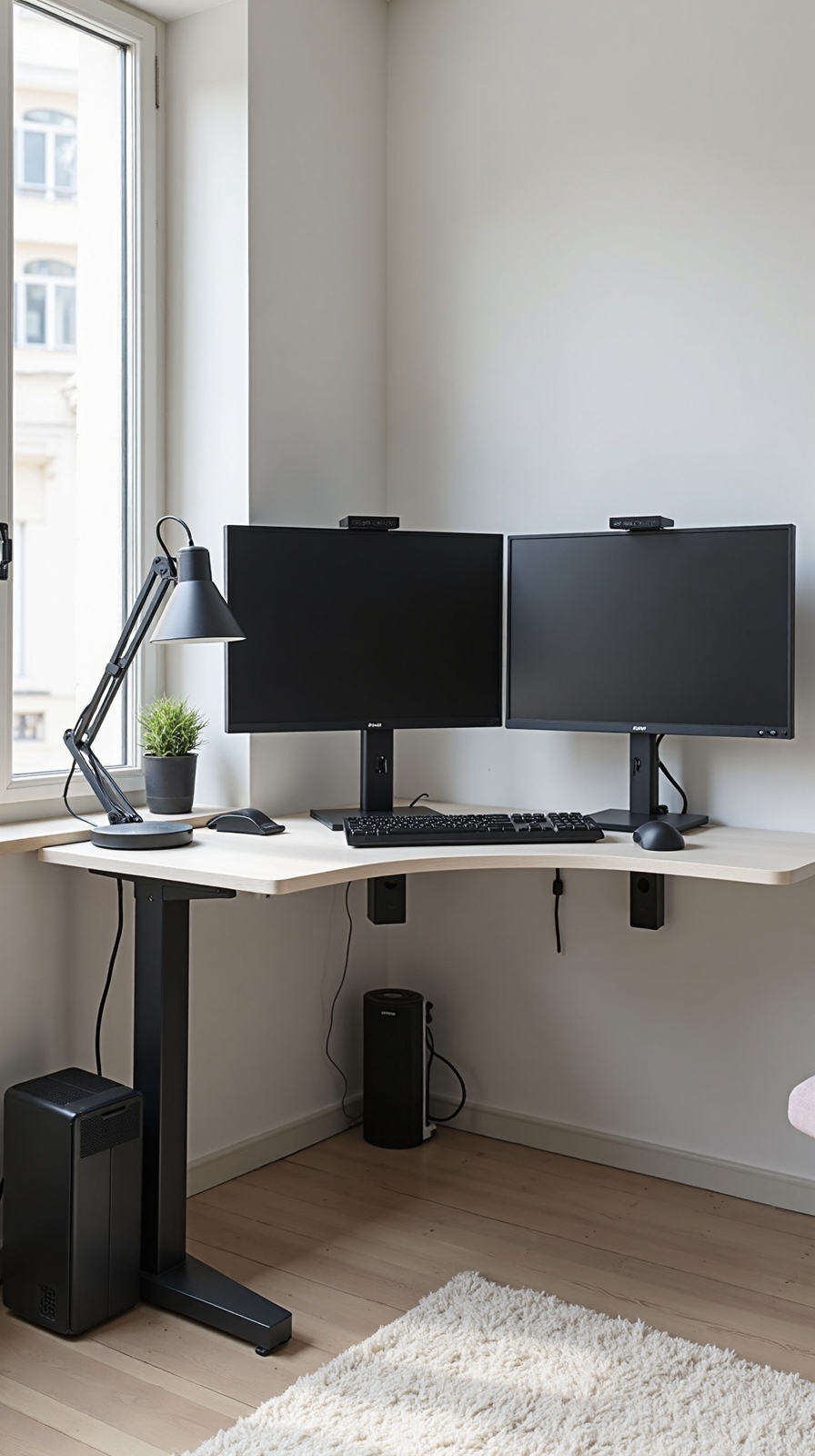
Corner desk setups offer exceptional space efficiency for dual monitor configurations, converting awkward room angles into productive workstations. You’ll maximize your available square footage while creating an immersive workspace that wraps around you naturally.
Position your monitors at slight angles following the desk’s corner shape, reducing neck strain during extended work sessions. This configuration creates a natural focal point that enhances concentration and workflow effectiveness.
Corner desk lighting requires strategic planning to eliminate shadows and glare across both screens. Install LED strip lights underneath overhead cabinets or position adjustable desk lamps at multiple angles for ideal illumination.
Effective corner desk organization involves utilizing vertical wall space above your monitors for storage shelves and cable management systems. You’ll keep essential items within arm’s reach while maintaining clean sightlines to both displays.
Standing Desk Dual Monitor Workstation
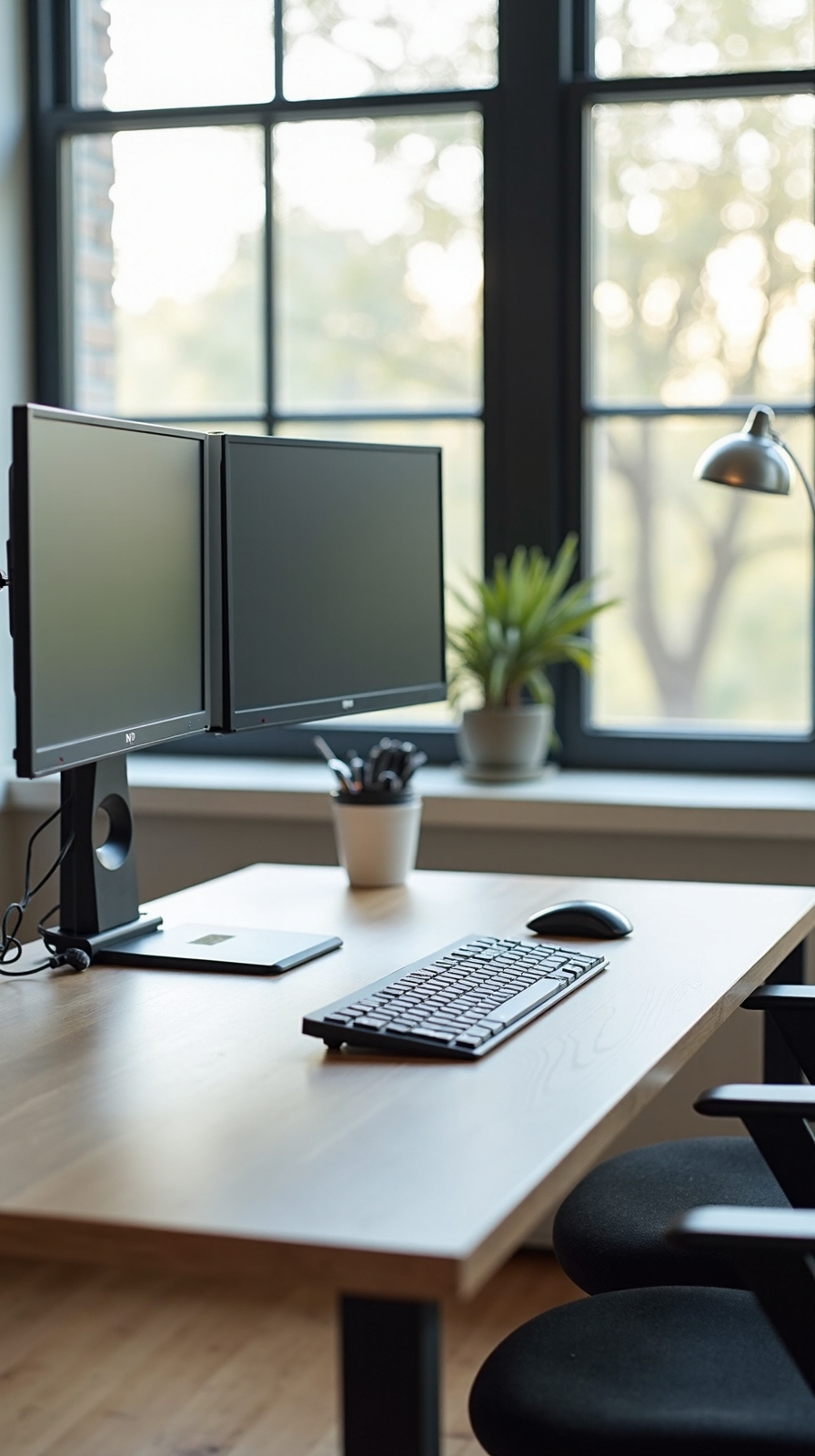
Although standing desks require careful planning for dual monitor setups, they’ll transform your workspace into a health-conscious command center that enhances productivity and reduces sedentary work risks.
Essential Components for Success
Choose an adjustable height desk that accommodates both sitting and standing positions throughout your workday. Your desk should provide adequate surface space for dual monitors while maintaining stability during height changes.
Optimal Monitor Positioning
Install a dual monitor arm that clamps securely to your desk’s edge or back panel. This setup allows you to adjust screen height, tilt, and distance as you alternate between sitting and standing positions. Position monitors at arm’s length with the top third at eye level when standing.
Cable Management Solutions
Implement cable trays and clips that move seamlessly with your desk’s height adjustments, preventing tangled wires from disrupting your workflow changes.
Ultra-Wide Plus Secondary Monitor Setup
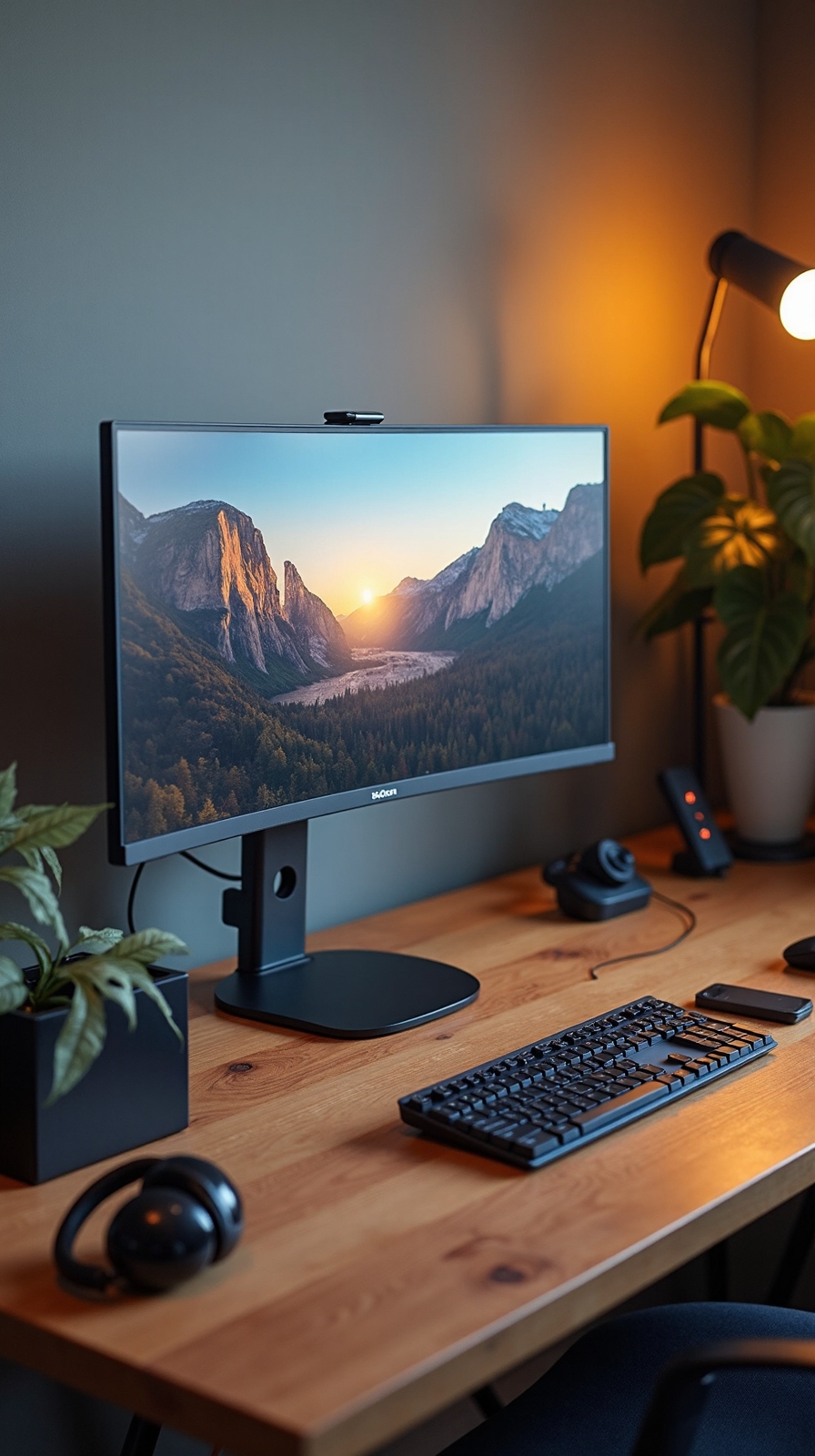
Many professionals uncover that pairing an ultra-wide monitor with a secondary display creates the ultimate productivity powerhouse for demanding workflows. You’ll find immersive multitasking capabilities that alter how you handle complex projects and multiple applications simultaneously.
Position your ultra-wide monitor as the primary screen for spreadsheets, coding, or creative work. The expansive horizontal space lets you view multiple documents side-by-side without constantly switching between windows.
Your secondary monitor becomes the perfect companion for email, chat applications, reference materials, or system monitoring tools.
Consider mounting the secondary display vertically beside your ultra-wide screen. This configuration offers productivity enhancing viewing angles for reading lengthy documents, code review, or social media management. You’ll maintain visual flow between screens while maximizing your available workspace for independent tasks.
Wall-Mounted Floating Dual Monitor Design
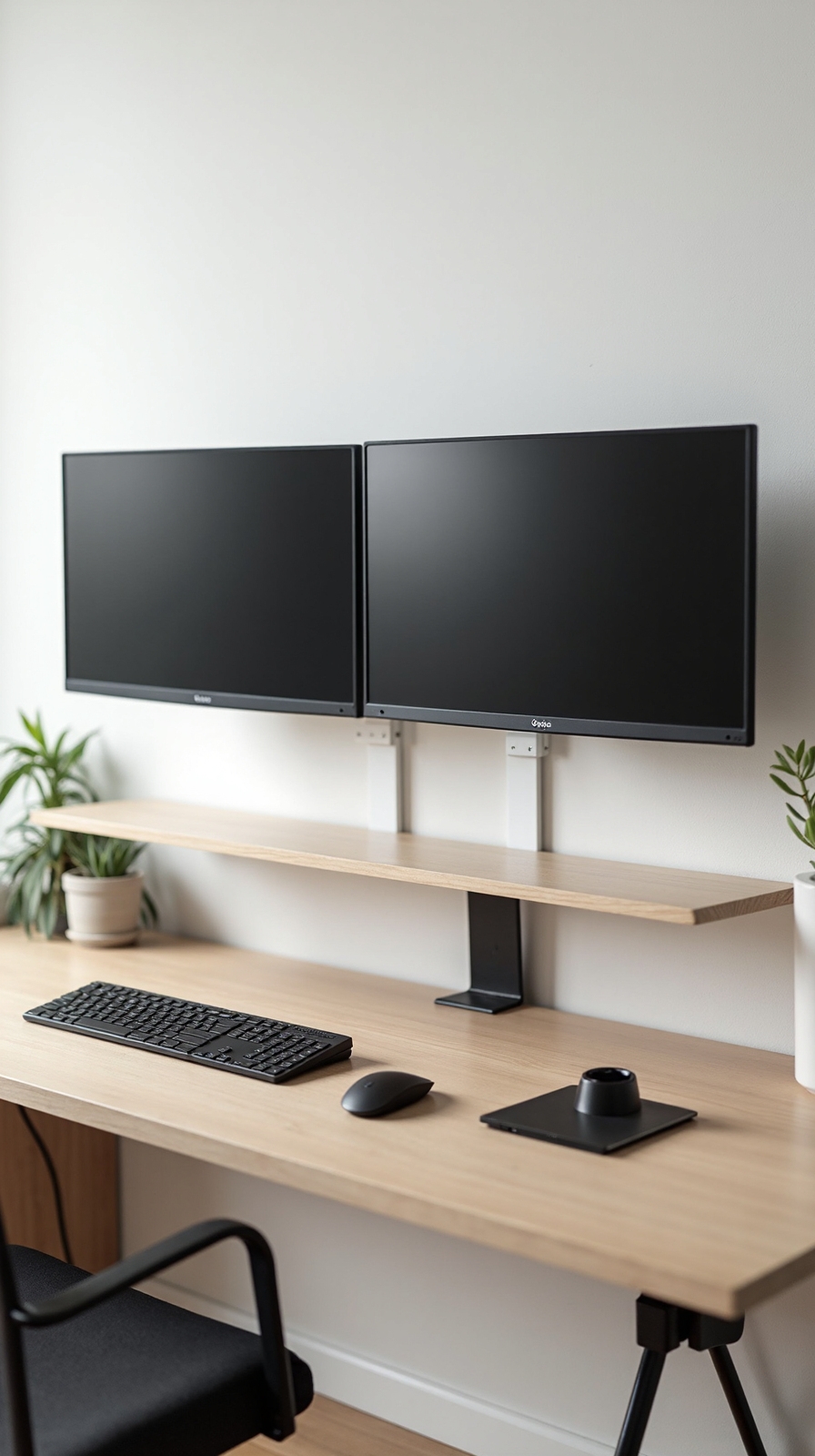
How can you achieve that sleek, minimalist aesthetic while maximizing your desk space? Wall-mounted floating dual monitor designs deliver the ultimate freedom from cluttered surfaces while creating an incredibly clean workspace.
Mount your monitors directly to the wall using articulating arms that allow full rotation and tilt adjustment. This setup eliminates bulky desk stands and frees up precious surface area for notebooks, coffee, or decorative items.
Install floating shelves beneath your monitors to hold speakers, charging stations, or office supplies. These shelves maintain the clean aesthetic while providing essential storage.
Add recessed lighting behind your monitors to reduce eye strain and create ambient workspace illumination. The subtle backlighting enhances focus during long work sessions while maintaining that professional, modern appearance you’re seeking.
L-Shaped Desk Dual Screen Arrangement
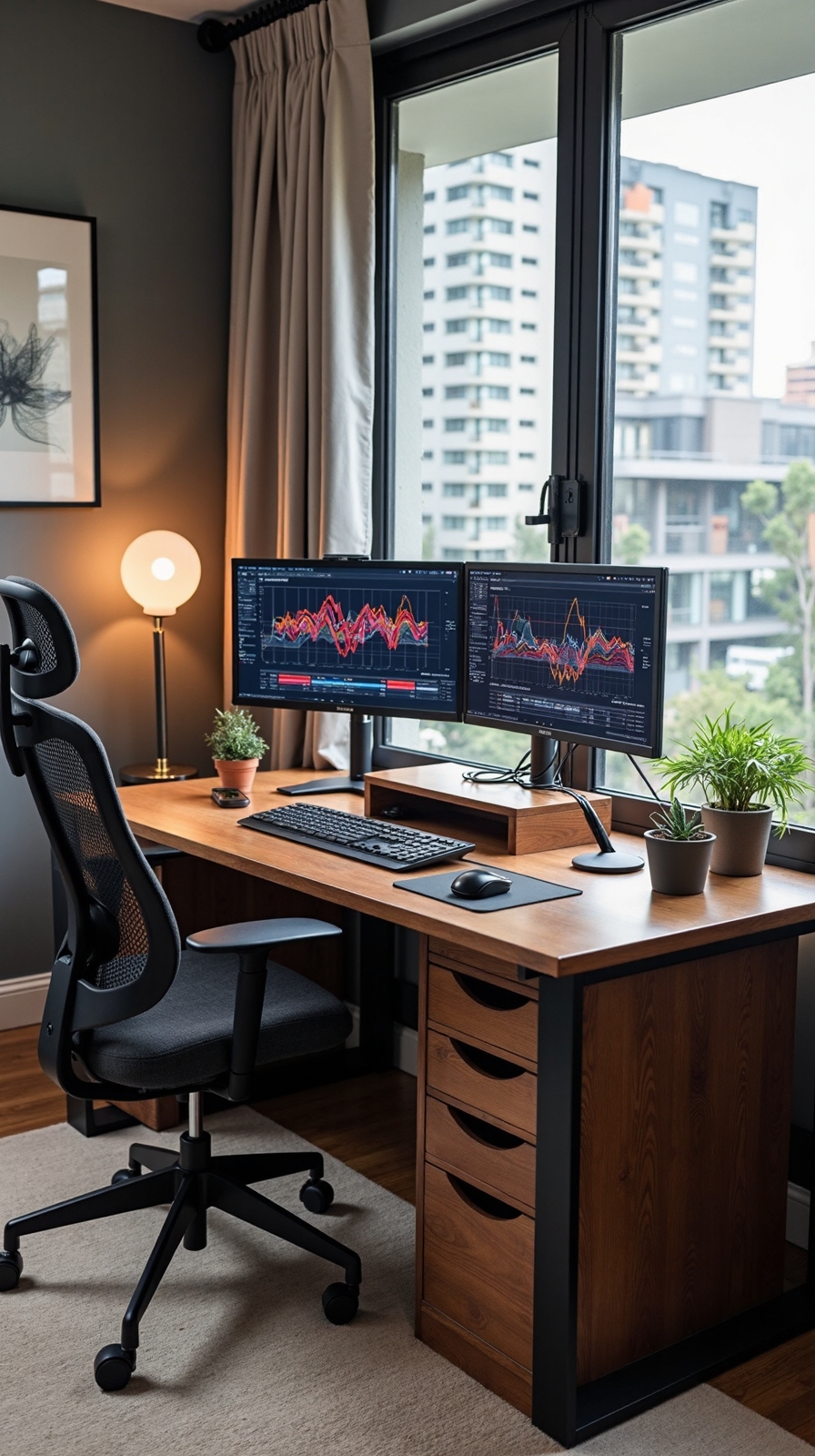
When you’re working with an L-shaped desk, you’ve got the perfect foundation for creating a dual monitor setup that maximizes both screen real estate and workflow efficiency. This wrap around desk configuration naturally accommodates two screens without cramming them into limited space.
Position your primary monitor directly in front of your main seating area, then place the secondary screen at a slight angle on the desk’s perpendicular section. This asymmetric monitor positioning creates an ergonomic viewing experience that reduces neck strain while maintaining easy access to both displays.
You’ll find this arrangement particularly effective for multitasking workflows like coding and research, video editing and monitoring, or managing communications alongside primary work tasks. The L-shape gives you additional surface area for keyboards, documents, and other essential tools.
Minimalist Dual Monitor Setup for Small Spaces
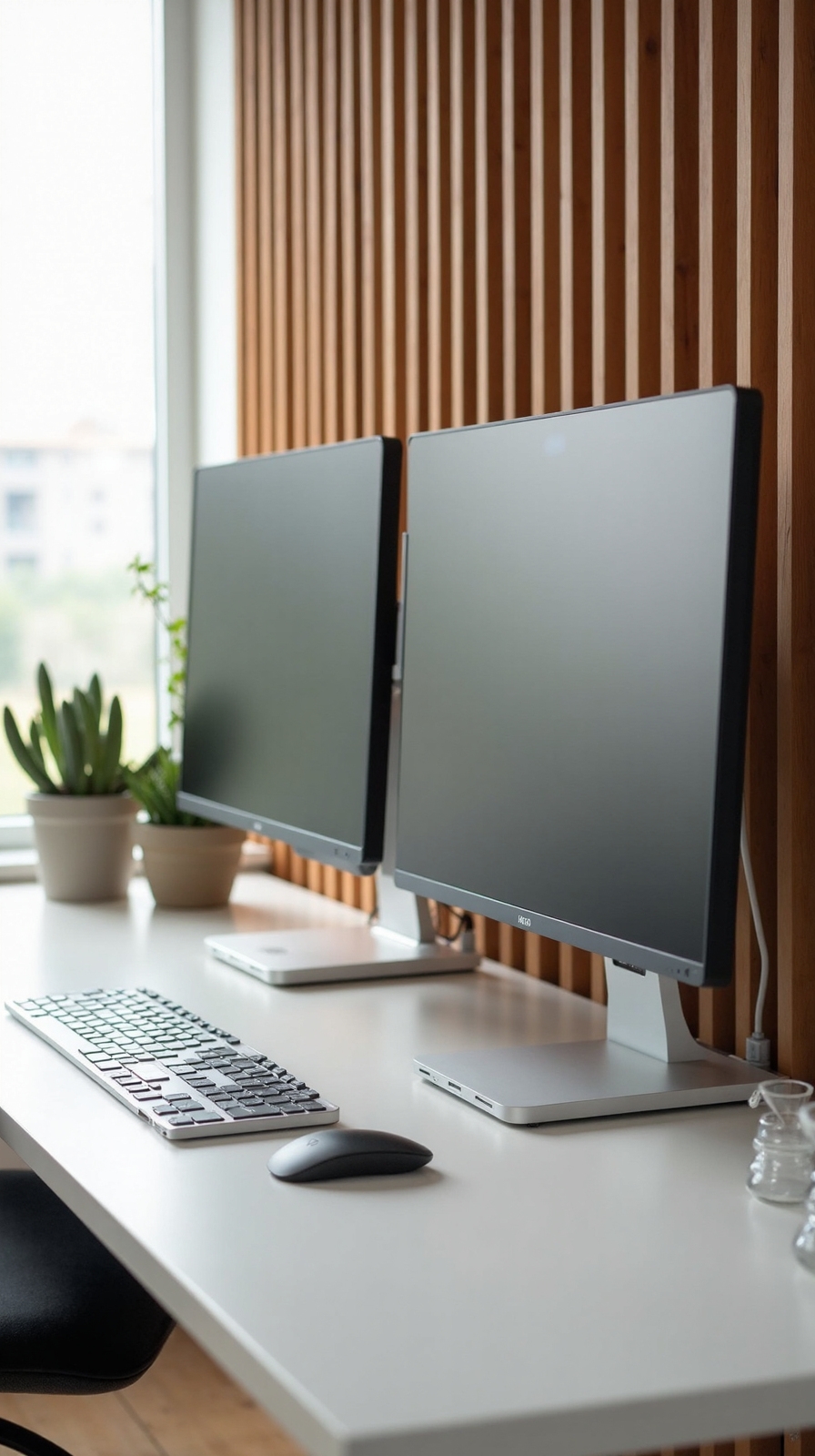
Although small spaces present unique challenges, you can still create an efficient dual monitor workspace that doesn’t overwhelm your room. Start by choosing a wall-mounted monitor arm system that creates a compact footprint while freeing up precious desk surface area.
Select monitors between 21-24 inches to maintain visual comfort without dominating your space. Position them at eye level with minimal bezels to create seamless viewing without bulk.
Consider a floating desk shelf that provides customizable storage underneath for your CPU, cables, and office supplies.
Keep your color palette neutral with white or light wood finishes to make the area feel larger. Use vertical wall organizers and magnetic strips to store accessories without cluttering your workspace, ensuring every inch serves a purpose.
Gaming-Inspired Dual Monitor Home Office
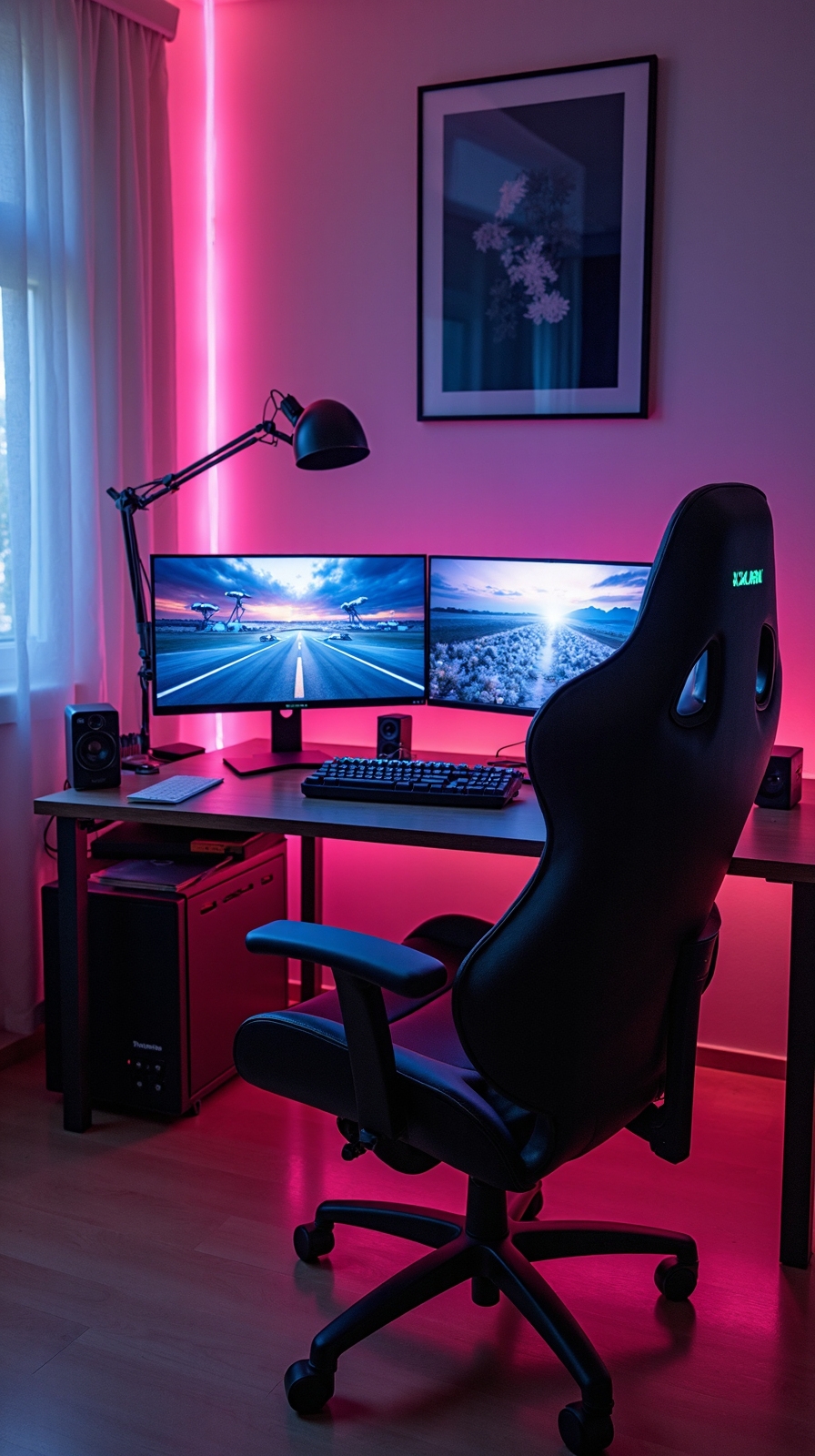
Gaming setups offer incredible inspiration for creating a dual monitor home office that’s both functional and visually striking. You’ll uncover that gaming inspired dual monitor setup principles translate perfectly to professional environments, combining performance with aesthetic appeal.
Start with high-refresh monitors positioned at eye level for reduced strain during long work sessions. RGB lighting strips behind your displays create ambient backlighting that reduces eye fatigue while adding visual flair. Consider curved monitors that wrap around your field of view, mimicking an immersive gaming experience during intensive work projects.
Cable management becomes indispensable for maintaining clean aesthetics. Use cable trays and sleeves to route power and data connections beneath your desk surface. Gaming chairs provide superior ergonomic support for extended periods, while mechanical keyboards offer tactile feedback that enhances typing efficiency and satisfaction.
Executive Dual Monitor Desk Setup
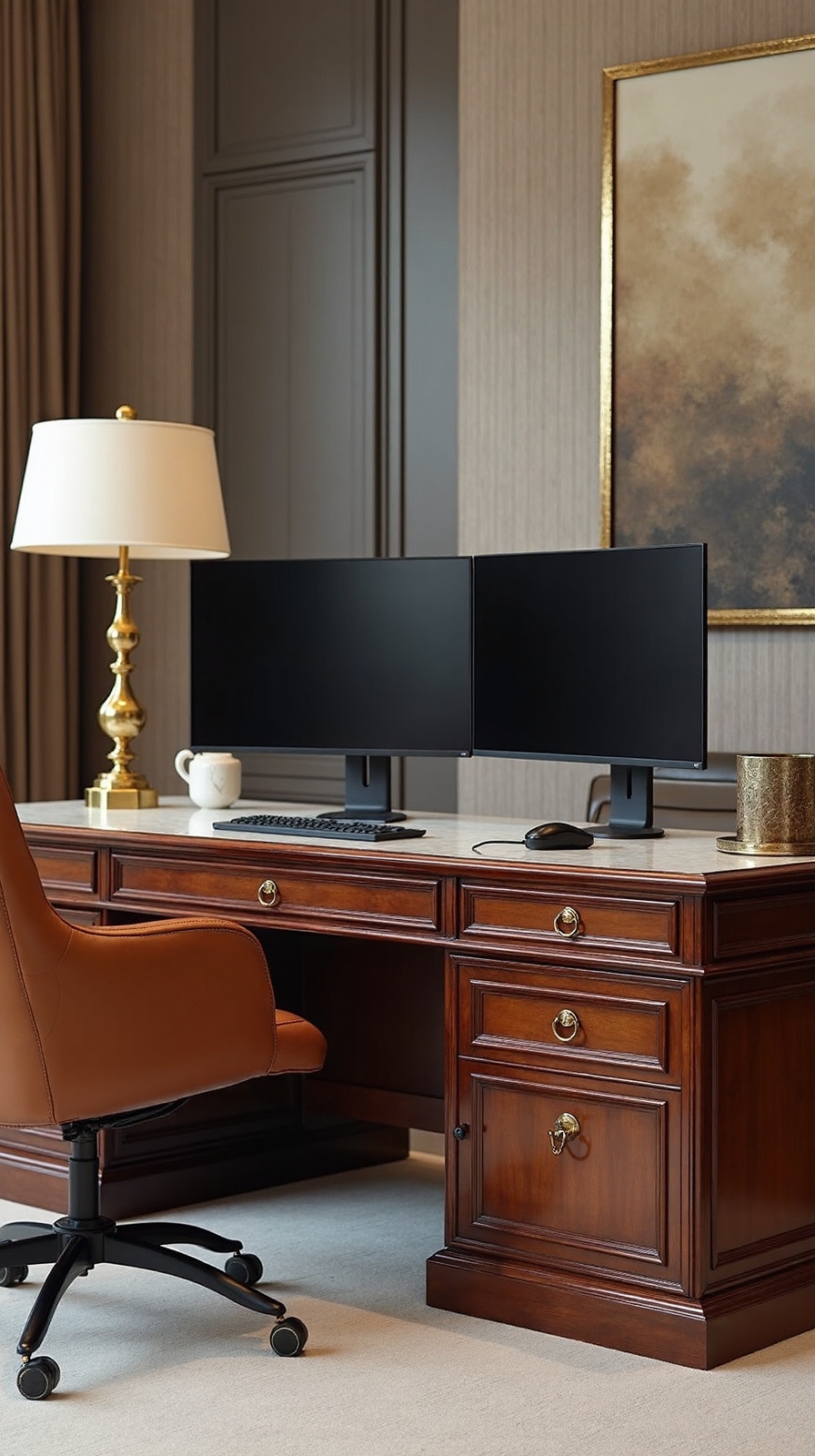
Professional environments demand sophisticated dual monitor configurations that project authority while maximizing productivity throughout your workday. Your executive setup should feature matching high-resolution displays positioned at eye level to maintain professional posture during video conferences and client presentations.
Choose productivity enhancing accessories like a premium wireless keyboard, ergonomic mouse, and document stand to create a polished workspace. Position your primary monitor directly in front of you, with the secondary display angled at 15-30 degrees for comfortable viewing.
Optimized monitor placement includes maintaining 20-26 inches distance from your eyes while ensuring both screens align perfectly at the top edges. Install cable management solutions to eliminate clutter beneath your desk. Consider adding a quality desk lamp and leather desk pad to complete your executive aesthetic while maintaining functionality.
Dual Monitor Setup With Integrated Cable Management
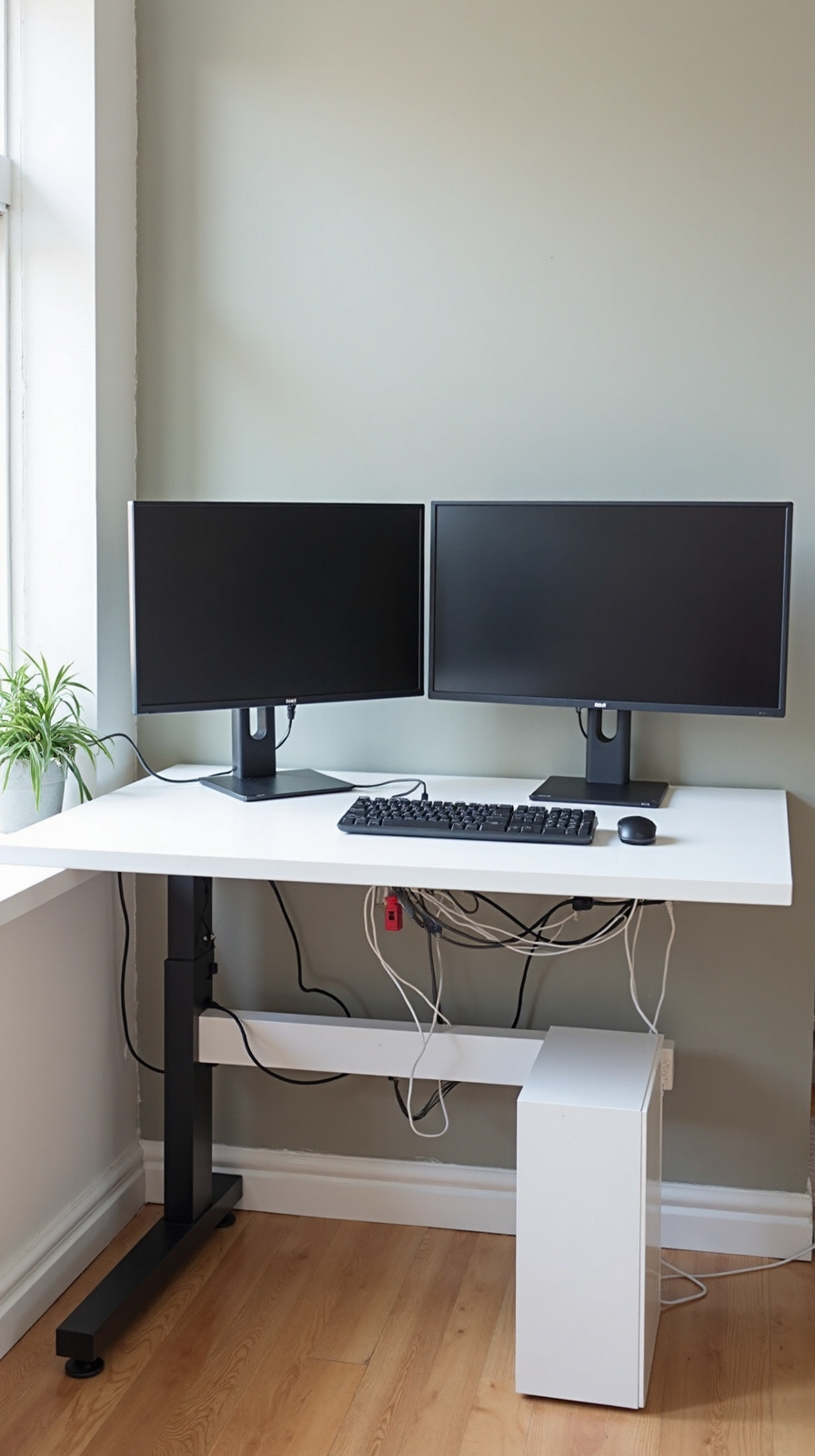
Cable management alters your dual monitor workspace from chaotic to streamlined, creating a clean environment that enhances both productivity and visual appeal. You’ll uncover that proper cable routing techniques transform your setup into a professional-grade workspace that reflects your commitment to excellence.
Start by selecting desks with built-in cable management features like grommets, channels, and hidden compartments. These designs naturally guide power cords and display cables through designated pathways, eliminating surface clutter entirely.
Implement concealed wire management using under-desk cable trays and adhesive clips that secure loose wires along your desk’s edges. You can route monitor cables through desk-mounted arms with integrated channels, keeping everything organized and accessible.
Consider adjustable cable spines that expand with your setup changes, giving you flexibility while maintaining that clean, distraction-free workspace you deserve.
Budget-Friendly Dual Monitor Configuration
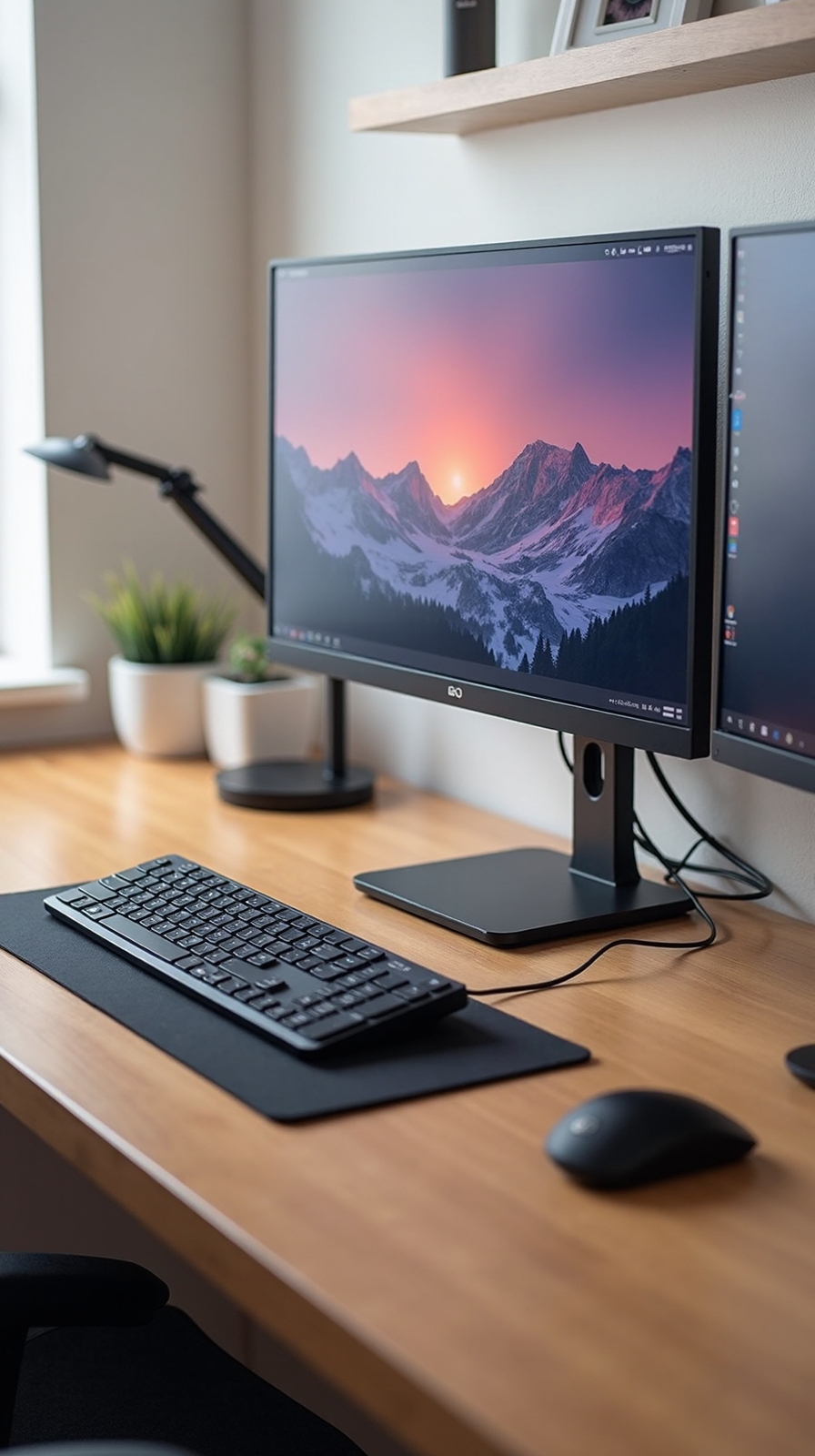
Although premium dual monitor setups can strain your budget, you’ll uncover numerous cost-effective strategies that deliver professional results without compromising functionality. Smart shopping for budget friendly display choices starts with refurbished monitors from reputable brands, offering 70% savings over new models.
Consider 24-inch 1080p displays that provide excellent value without premium pricing.
Cost effective monitor mounting options include adjustable desk clamps starting at $30, eliminating expensive dedicated stands. Alternative solutions involve repurposing existing furniture or creating DIY risers using books or storage boxes. You can also investigate single-arm mounts that accommodate two screens, reducing overall hardware costs.
Mix and match different-sized monitors you already own, creating an asymmetrical setup that’s both functional and economical. This approach maximizes your existing resources while achieving professional productivity gains.
Ergonomic Dual Monitor Workstation Design
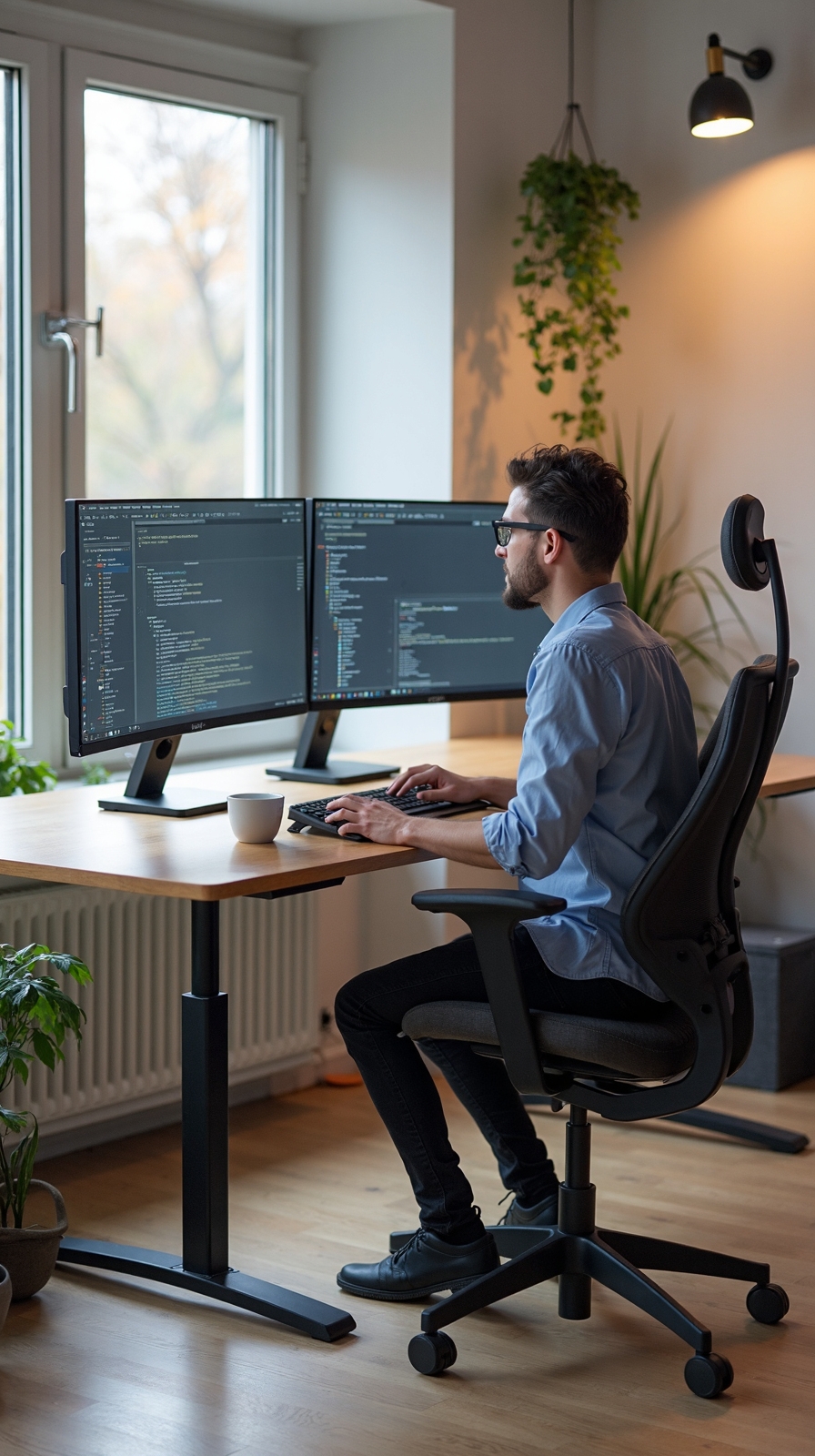
Setting up your dual monitor workstation correctly can make the difference between comfortable productivity and daily physical strain. You’ll want to position both screens at eye level to prevent neck strain during long work sessions.
Invest in quality monitor arms that offer adjustable monitor height capabilities, allowing you to customize positioning based on your seated posture. Look for monitor arm flexibility that enables tilting, swiveling, and rotating movements to find your perfect viewing angles.
Position your primary monitor directly in front of you, with the secondary screen angled slightly inward. Maintain 20-24 inches distance from each screen to reduce eye fatigue. Your monitors’ top edges should align with your natural eye level when sitting upright.
Choose monitor arms with cable management systems to keep your workspace clean and organized while maintaining full movement freedom.
Multi-Level Dual Monitor Arrangement
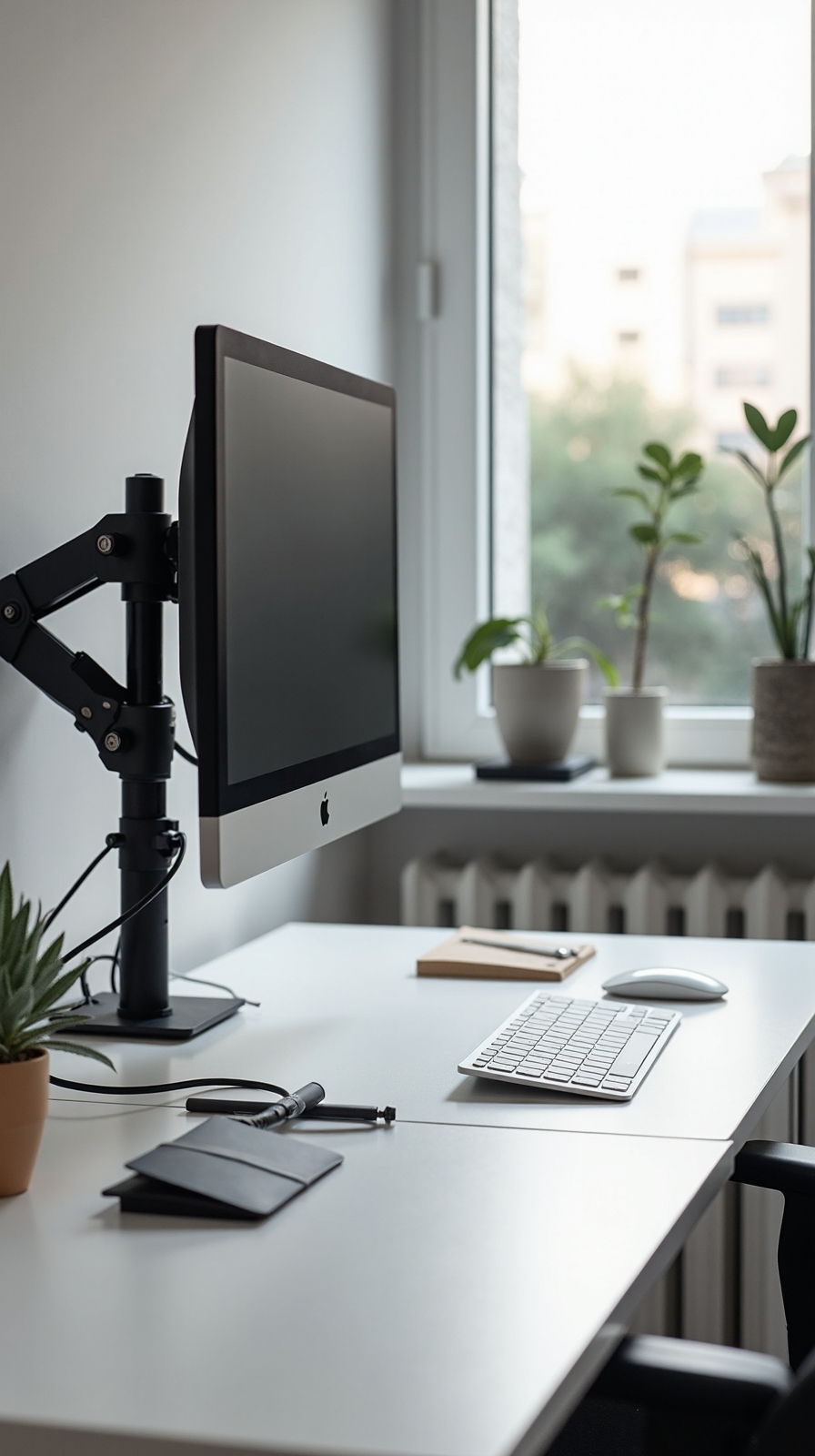
Many professionals uncover that stacking monitors vertically creates a surprisingly efficient workflow for their home office setup. You’ll find this arrangement particularly beneficial when comparing documents, coding, or managing multiple data streams simultaneously.
Consider implementing angled monitor orientation by tilting your upper display slightly downward. This reduces neck strain while maintaining ideal viewing angles for extended work sessions. You can mount one monitor directly above another or position them in a stepped configuration.
Asymmetric monitor placement offers another compelling approach for your workspace. Position your primary monitor at eye level while placing the secondary screen higher and slightly to one side. This configuration works exceptionally well for reference materials, email monitoring, or social media management.
Start with adjustable monitor arms that provide flexibility as you discover your preferred viewing positions.
Portable Dual Monitor Setup for Flexible Working
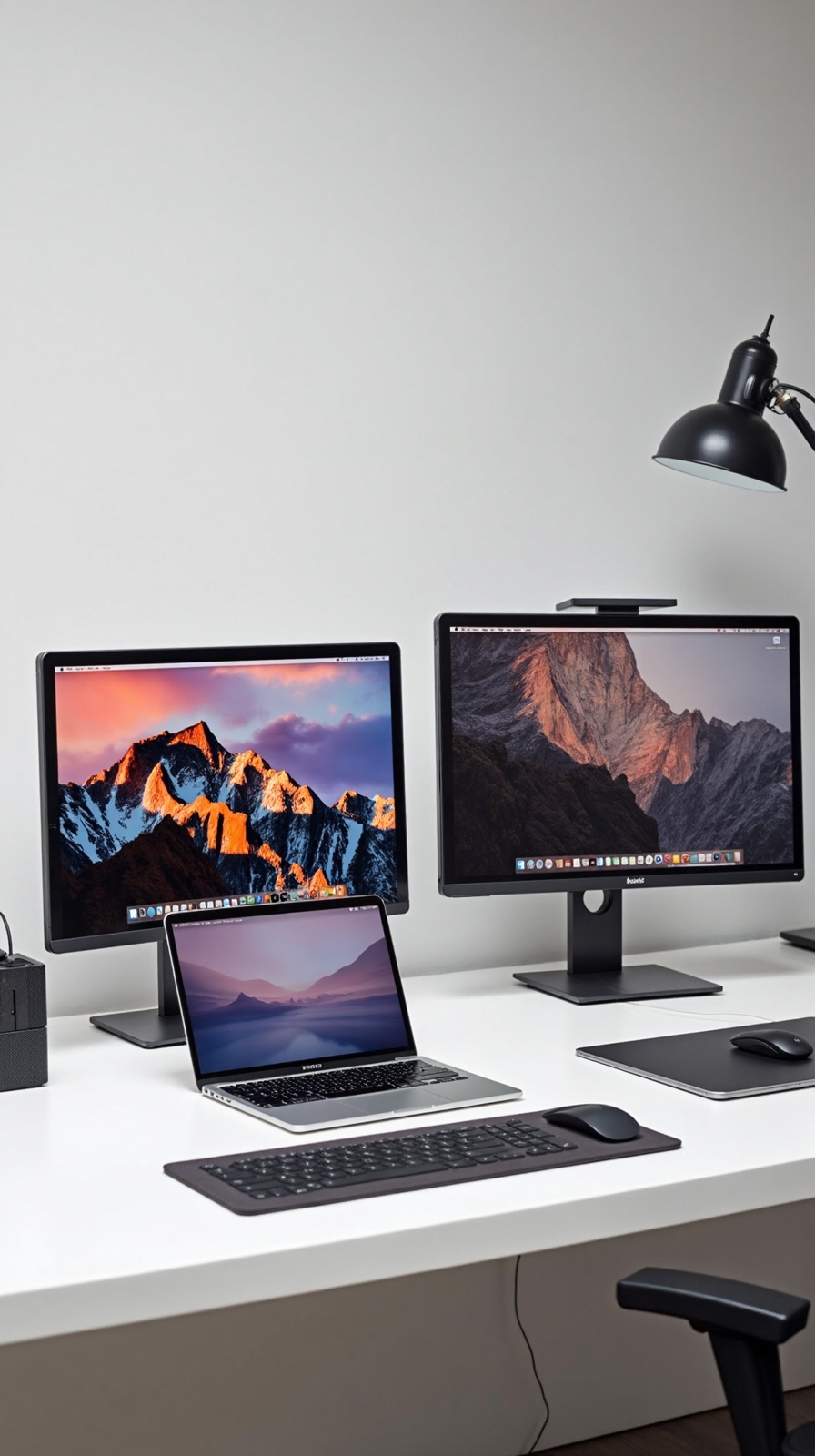
Remote work demands and frequent location changes require monitor solutions that can move with you effortlessly. You’ll need equipment that transforms any space into a productive workspace without compromising your dual-screen advantage.
A portable laptop stand becomes your foundation for mobile productivity. Choose adjustable models that elevate your primary screen while creating space for accessories underneath. Lightweight aluminum stands fold flat for travel yet support substantial weight when deployed.
Monitor arm mounts designed for temporary setups offer incredible flexibility. Clamp-style arms attach to various surfaces without permanent installation, letting you position screens at ideal heights and angles. Look for arms with USB-C connectivity to reduce cable clutter.
Pack everything in a dedicated travel case to protect your investment and maintain organization between locations.
Conclusion
You’ve investigated nine powerful dual monitor configurations that can alter your home office productivity. Whether you choose a classic side-by-side setup, ergonomic standing workstation, or portable arrangement, the key lies in matching your specific workflow needs. Start with proper positioning at eye level, invest in quality monitor arms, and don’t forget cable management. Your perfect dual monitor setup awaits—pick one configuration and begin building your productivity powerhouse today.