17 Ergonomic Home Office Ideas for Comfort and Wellness
How can 17 simple ergonomic adjustments transform your painful home office into a comfort zone that boosts productivity and protects your health?
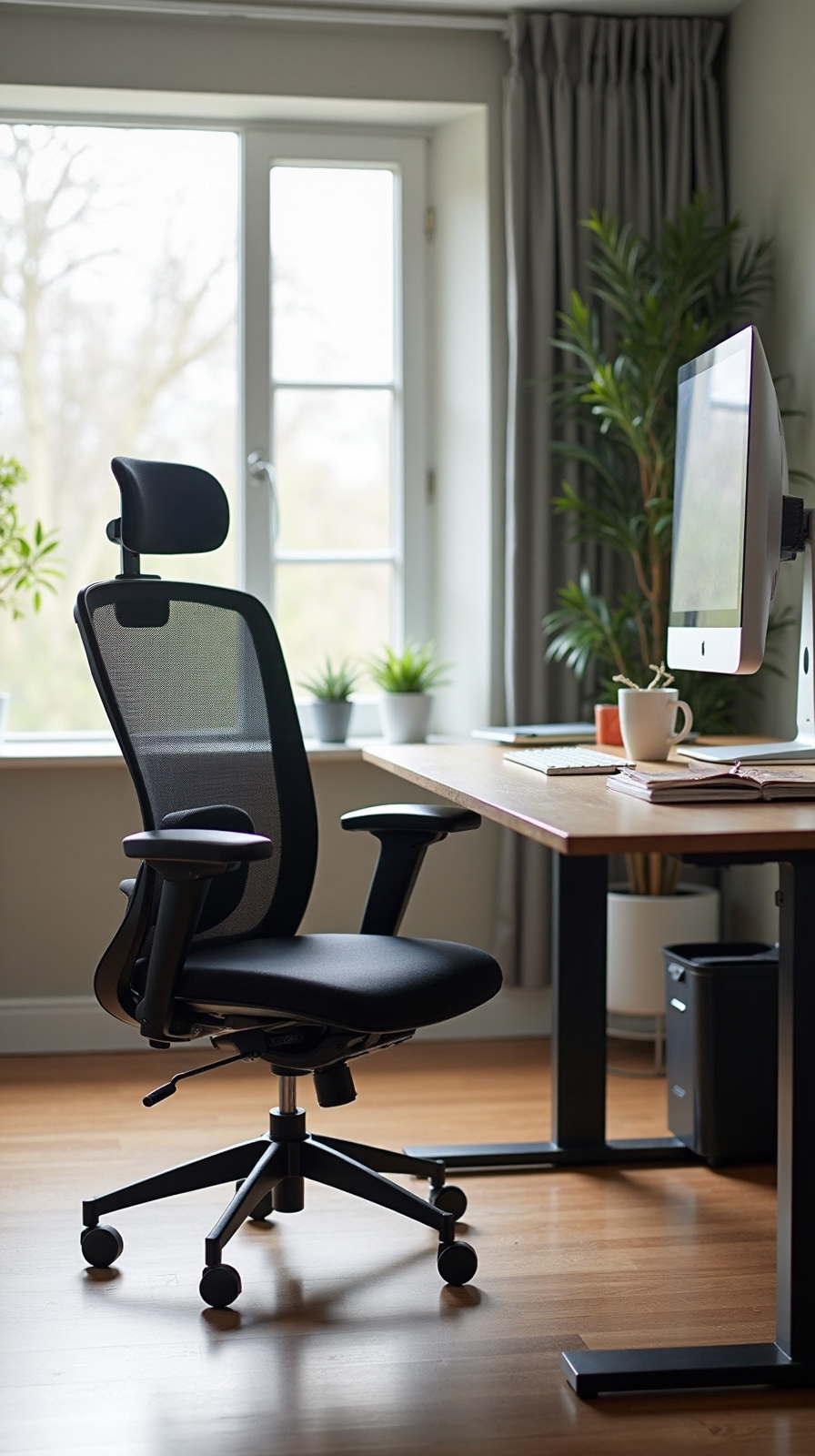
You’re spending countless hours hunched over your laptop, battling neck pain and wrist strain that shouldn’t be part of your daily work routine. Creating an ergonomic home office isn’t just about comfort—it’s about protecting your long-term health and enhancing your productivity. Small adjustments to your workspace can eliminate those nagging aches and help you maintain energy throughout your workday. Seventeen practical changes that’ll revitalize your home office into a wellness-focused environment.
Position Your Monitor at Eye Level to Prevent Neck Strain
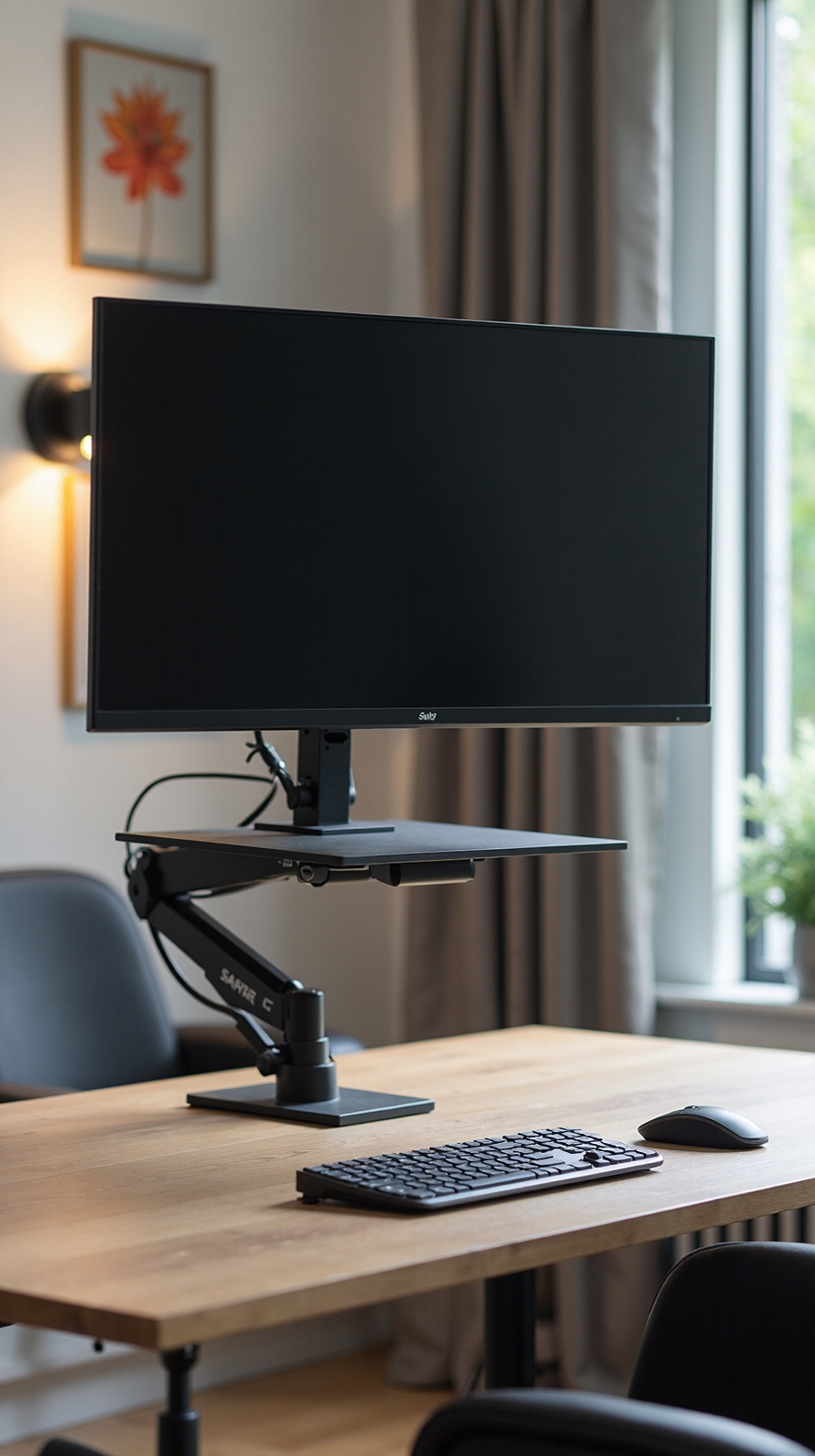
When you position your monitor at the wrong height, you’re setting yourself up for persistent neck pain and long-term posture problems. Your screen’s top edge should align with your eye level, allowing you to look straight ahead without tilting your head up or down.
Place your monitor 20-26 inches away from your face to reduce eye strain and maintain natural neck positioning. If you’re using a laptop, invest in an external monitor or laptop stand to achieve the proper screen angle. This simple modification alters your workspace into a neck-friendly zone.
Don’t forget monitor brightness adjustment – your screen should match surrounding light levels. Too bright or dim forces you to lean forward, disrupting that perfect ergonomic alignment you’ve worked to create.
Invest in an Adjustable Ergonomic Chair With Proper Lumbar Support
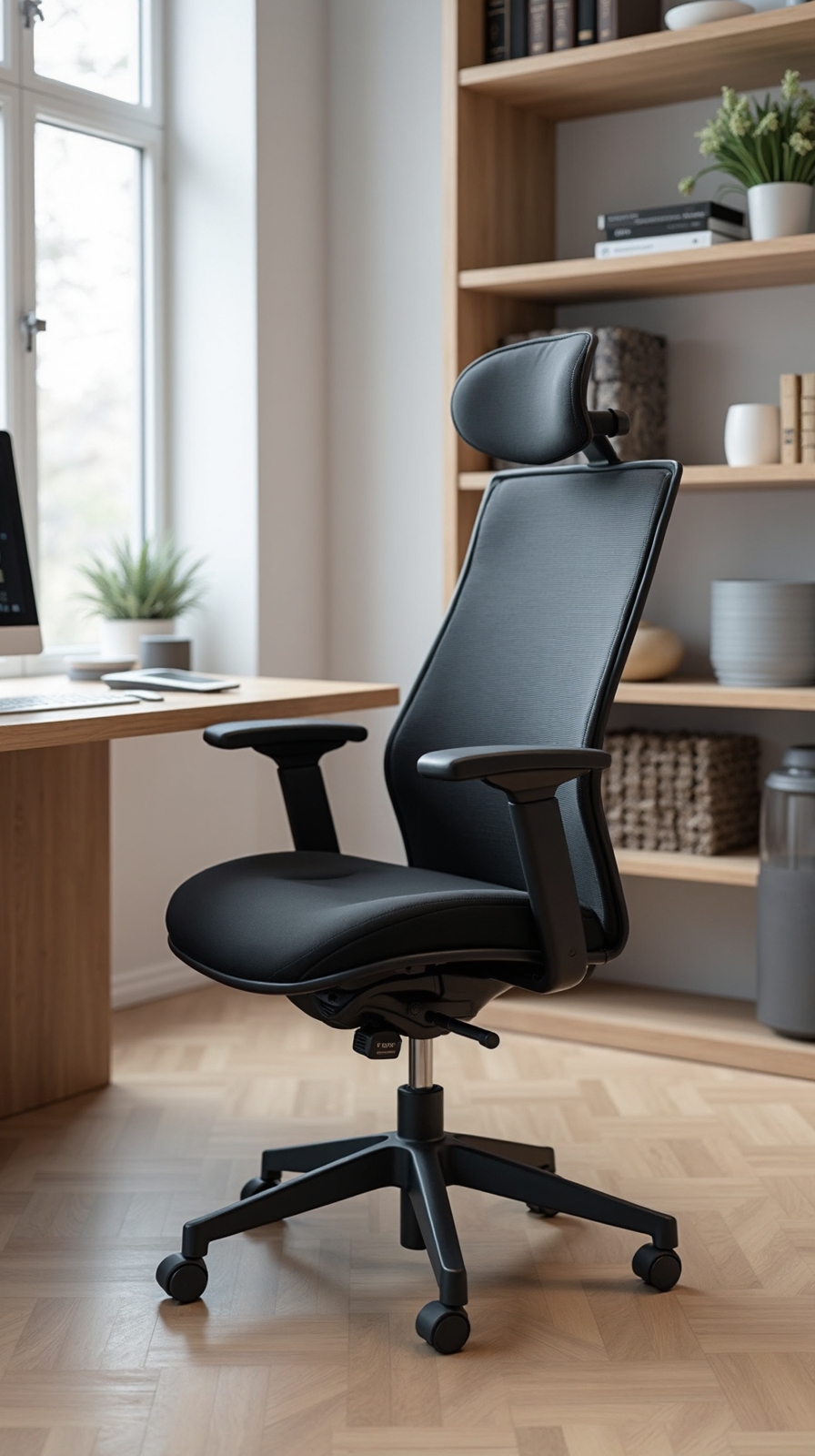
Your spine’s natural S-curve needs consistent support throughout your workday, making an adjustable ergonomic chair your most essential home office investment. You’ll want a chair that adapts to your body rather than forcing you to adapt to it.
Look for adjustable height settings that let your feet rest flat on the floor with knees at 90 degrees. Quality lumbar support should curve inward to match your lower back’s natural arch, preventing slouching and reducing pressure on your spine.
Adjustable cushioning guarantees comfort during long work sessions, while ergonomic armrests should support your elbows at desk height. You’ll reduce shoulder tension and wrist strain dramatically. Choose armrests that move up, down, and sideways for maximum flexibility. This investment pays dividends in comfort, productivity, and long-term spinal health.
Set Your Desk Height for Optimal Arm and Wrist Positioning

How can a perfectly adjusted chair lose its ergonomic benefits if your desk sits at the wrong height? When your workspace doesn’t align properly, you’ll find yourself hunching forward or raising your shoulders unnaturally.
Proper desk height positions your elbows at 90-degree angles while typing, with your forearms parallel to the floor. Your wrists should remain straight and neutral, not bent upward or downward. Most standard desks sit at 29-30 inches, but your ideal height depends on your body proportions.
If you can’t achieve desk height adjustment with a fixed surface, consider a keyboard tray or adjustable desk converter. These solutions give you the freedom to customize your workspace without major renovations. Standing desk options also provide flexibility throughout your workday, letting you alternate between sitting and standing positions.
Use a Document Holder to Reduce Head Movement
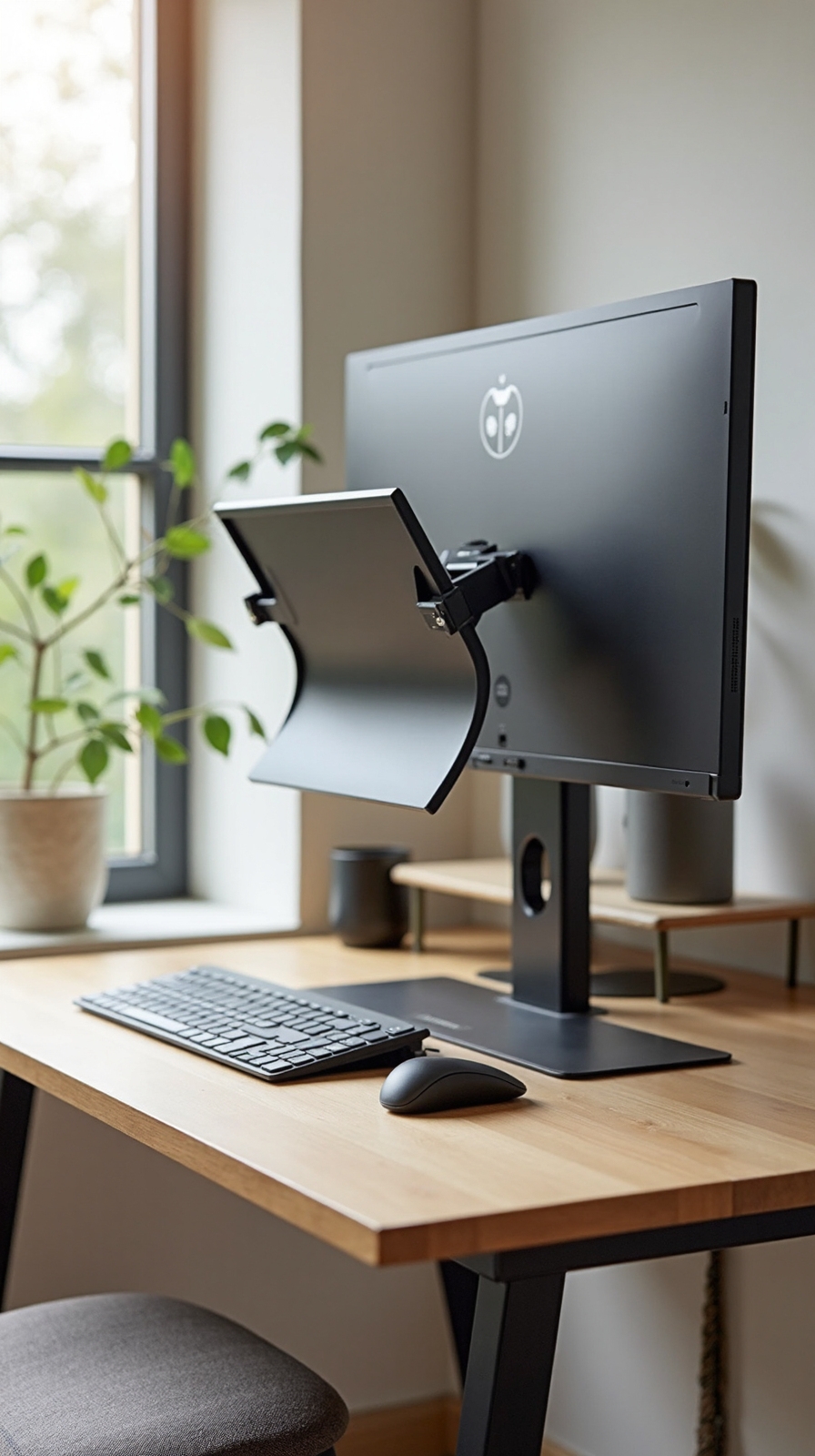
Constant neck craning between your computer screen and paper documents creates unnecessary strain that accumulates throughout your workday. A document holder positioned at eye level eliminates this repetitive motion, keeping your head in a neutral position while you reference materials.
Place your document holder directly beside your monitor at the same height as your screen. This creates a seamless visual flow between digital and physical documents without forcing awkward neck movements. You’ll maintain proper monitor positioning while accessing both resources effortlessly.
Consider adjustable document holders that accommodate various paper sizes and angles. Some models include built-in lighting to reduce eye strain when screen brightness adjustment isn’t sufficient. Choose holders with non-slip bases and easy paper loading mechanisms. This simple addition alters your workspace into a more comfortable, efficient environment that supports your independence.
Add a Footrest to Support Proper Leg Positioning
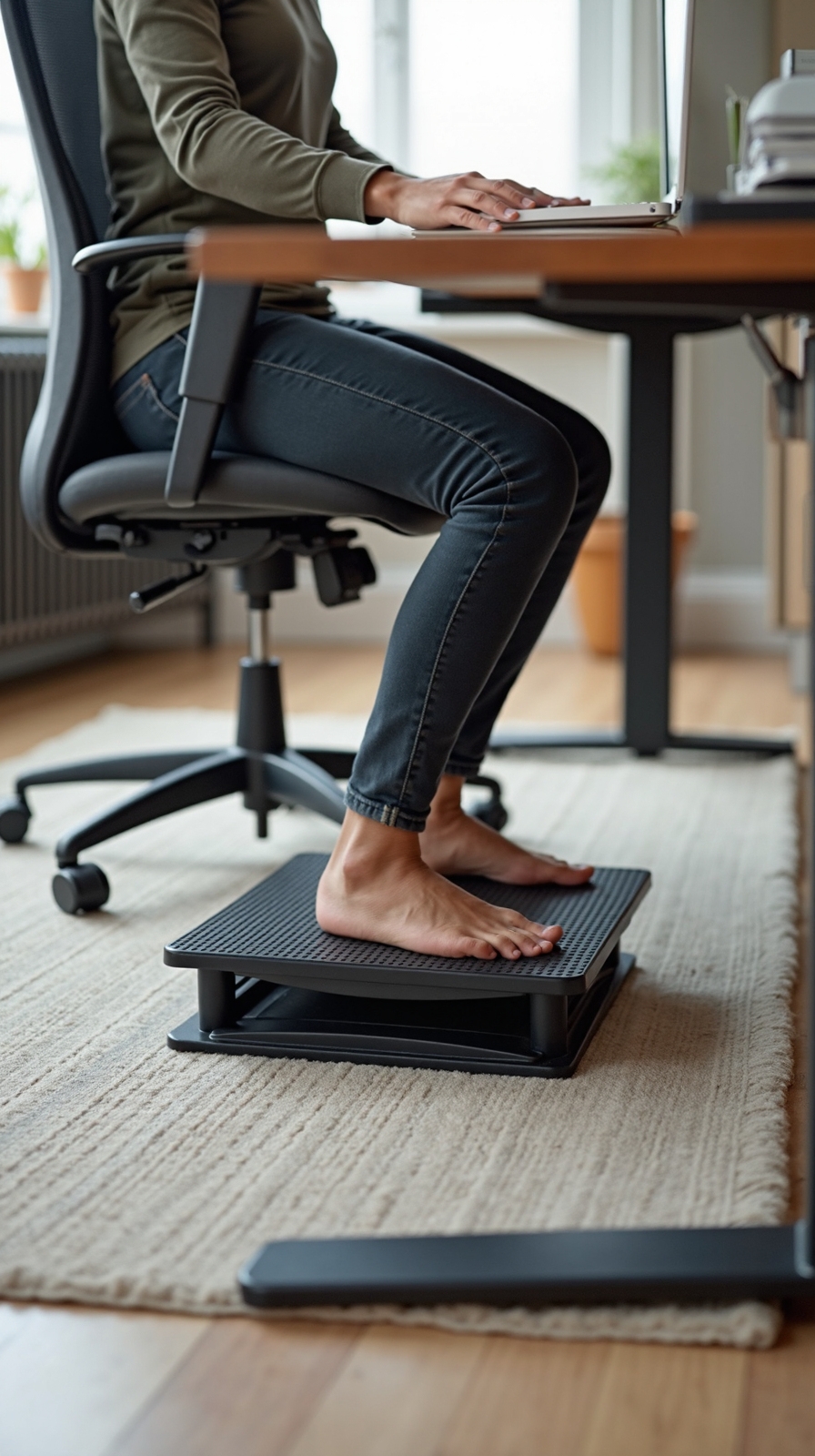
Most office workers experience leg discomfort because their feet dangle or rest flat on the floor without proper thigh support. You’ll find that adding a footrest creates the ideal 90-degree angle at your knees while reducing pressure on your lower back.
Choose a footrest with foot height adjustment capabilities to match your desk and chair combination perfectly. Quality models offer multiple height settings, typically ranging from 4 to 8 inches, allowing you to find your sweet spot for comfort.
Footrest customization extends beyond height adjustments—look for models with tilting platforms and textured surfaces for better grip. Some footrests include rocking mechanisms that encourage subtle leg movement throughout your workday, promoting better circulation and reducing stiffness in your calves and ankles.
Implement the 20-20-20 Rule for Eye Health
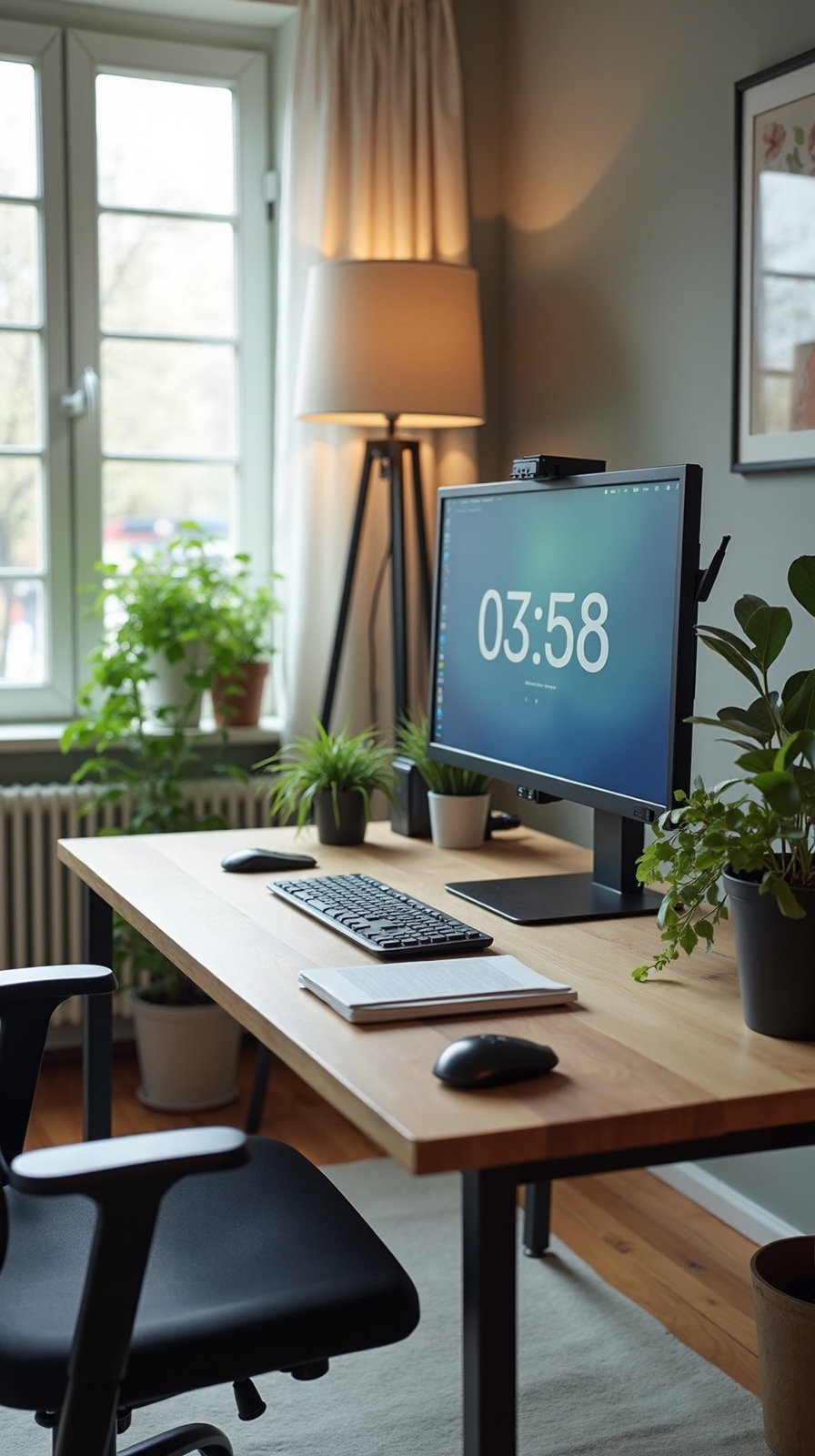
Digital eye strain affects nearly 70% of remote workers who spend extended hours staring at computer screens without proper breaks. You can break free from this uncomfortable cycle by implementing a simple yet powerful solution.
Practice the 20-20-20 rule to protect your vision and maintain productivity throughout your workday. Every 20 minutes, look at something 20 feet away for at least 20 seconds. This technique relaxes your eye muscles and reduces strain from constant close-up focus.
Set phone notifications or use apps to help you take regular breaks consistently. During these micro-breaks, blink deliberately several times to refresh your eyes naturally. You’ll notice reduced headaches, less blurred vision, and improved concentration when you make this practice a non-negotiable part of your routine.
Position Your Keyboard and Mouse at the Same Level
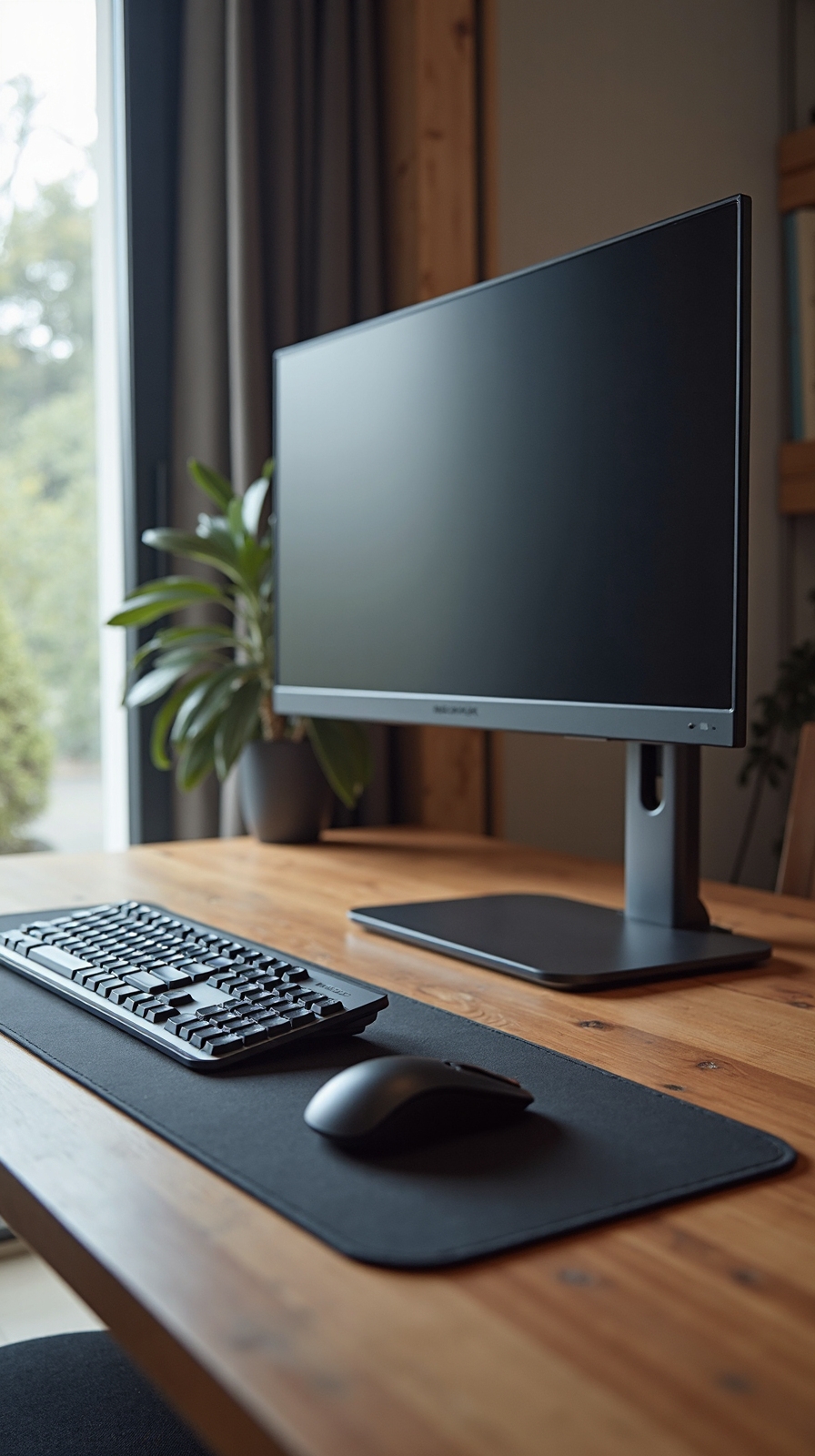
Improper keyboard and mouse positioning creates unnecessary strain on your wrists, forearms, and shoulders during long work sessions. You’ll want to place both devices at identical heights to maintain natural arm alignment and prevent repetitive stress injuries.
Set your keyboard and mouse on the same surface level, typically at elbow height when you’re seated. This positioning promotes proper keyboard and wrist alignment, keeping your wrists straight rather than bent upward or downward. Your elbows should form 90-degree angles while typing.
Focus on correct hand positioning on mouse by keeping your wrist neutral and relaxed. Consider using a keyboard tray or adjustable desk to achieve ideal height. If your mouse sits higher than your keyboard, you’ll unconsciously lift your shoulder, creating tension that builds throughout your workday.
Create Adequate Natural and Artificial Lighting
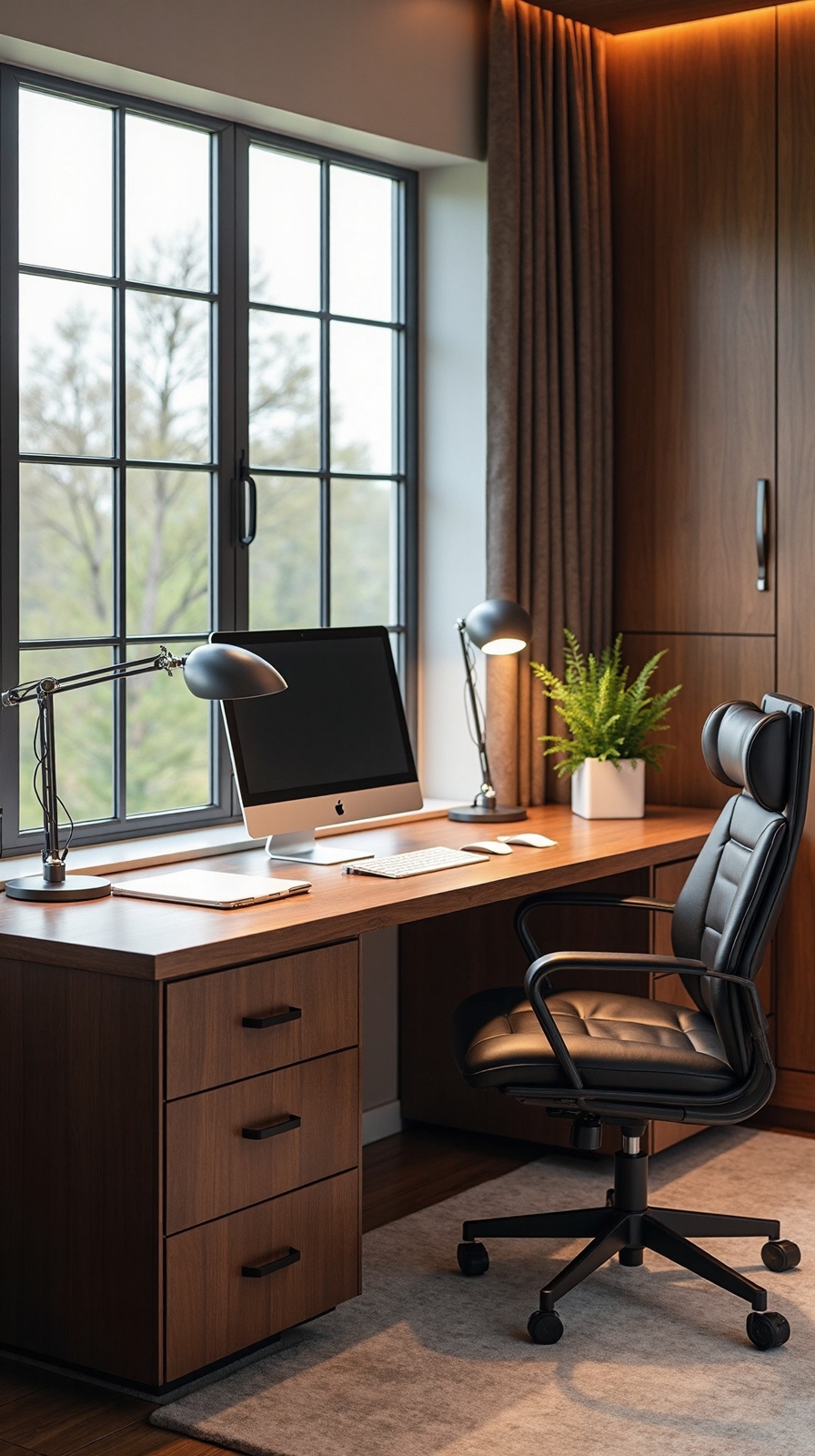
Poor lighting forces you to strain your eyes, lean forward awkwardly, and develop headaches that impact your productivity throughout the day. Creating a well-lit workspace breaks these chains of discomfort and releases your potential.
Position your desk perpendicular to windows to maximize natural lighting without creating screen glare. Natural light enhances mood and reduces eye fatigue while keeping you connected to the outside world.
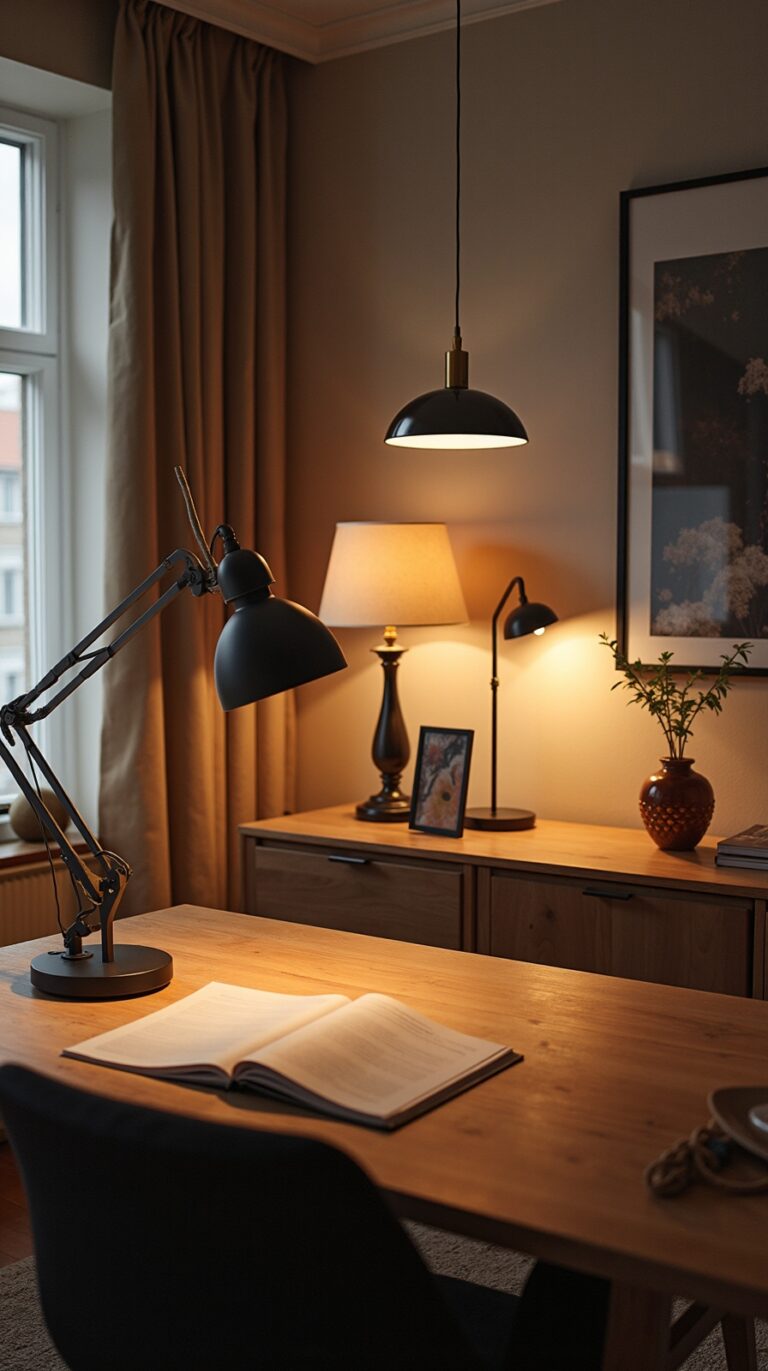
Incorporate task lighting through adjustable desk lamps that provide focused illumination for detailed work. Choose LED bulbs with 2700K-3000K color temperature for warm, comfortable lighting that won’t strain your eyes during long work sessions.
Add ambient lighting with floor lamps or overhead fixtures to eliminate harsh shadows and create balanced illumination throughout your space. This layered approach gives you control over your environment.
Use a Standing Desk Converter for Movement Variety
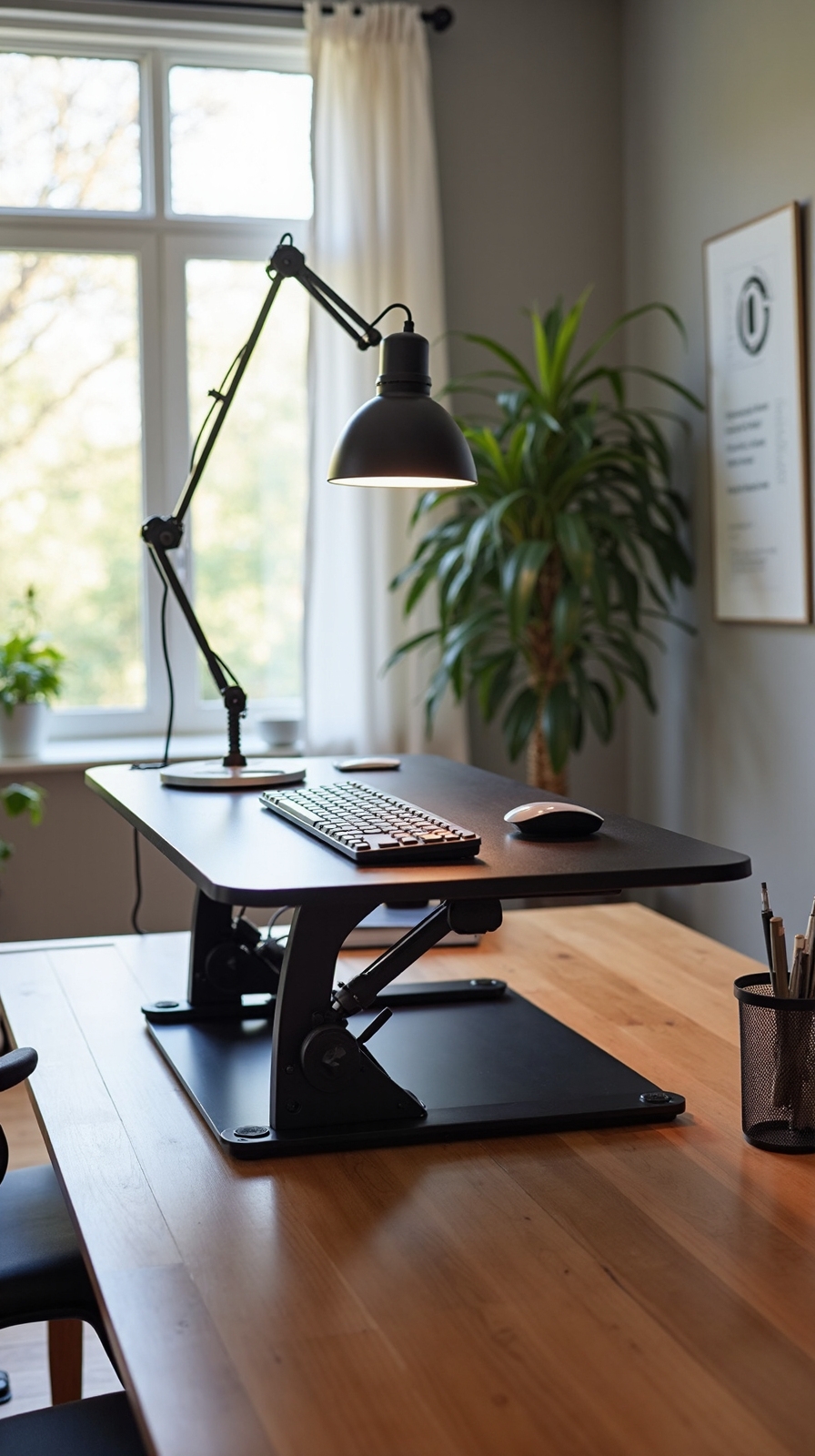
When you remain seated for hours at your traditional desk, your body craves movement and positioning variety that only a standing desk converter can provide. These adjustable desk surfaces alter your existing workspace without requiring a complete furniture overhaul.
You’ll experience immediate benefits by alternating between sitting and standing throughout your workday. Start with 15-minute standing intervals, gradually increasing duration as your body adapts to this healthier routine.
Choose converters with varying desk heights that accommodate your specific measurements. Measure from your elbow to the floor while standing to determine your ideal height range.
Position your monitor at eye level in both sitting and standing positions. This prevents neck strain and maintains proper spinal alignment regardless of your chosen work position, giving you the freedom to move naturally.
Place Frequently Used Items Within Easy Reach
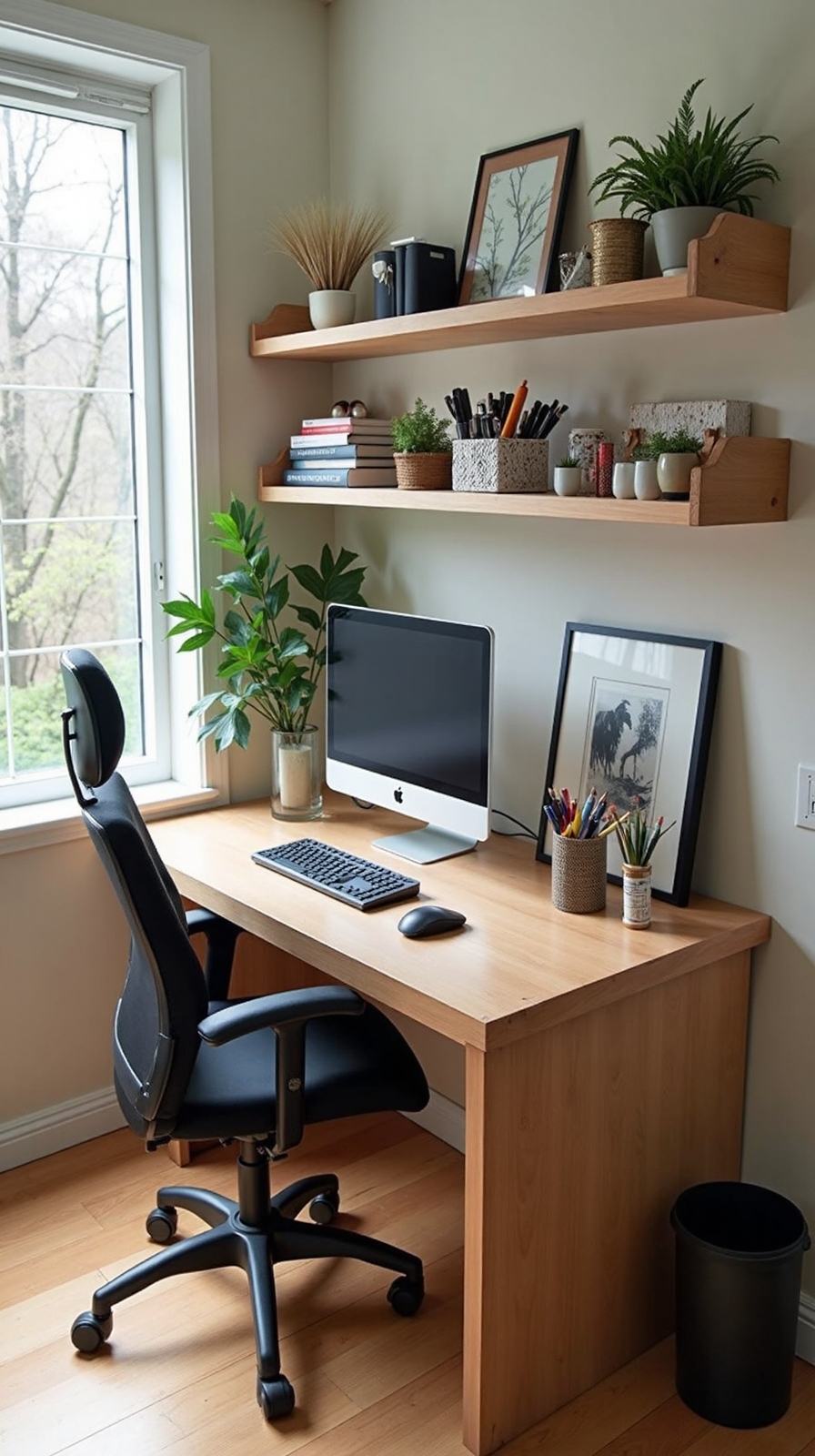
Arranging your workspace with essential items positioned strategically within arm’s reach dramatically reduces unnecessary stretching, twisting, and repetitive movements that can lead to strain and fatigue. You’ll maintain better posture and work more efficiently when your most-used supplies are immediately accessible.
Create easily accessible storage by placing your phone, notebook, pens, and water bottle within a comfortable 18-24 inch radius from your seated position. Position your printer, reference materials, and frequently accessed files on nearby shelves or desktop organizers.
Convenient item placement means keeping your computer mouse at the same height as your keyboard and positioning your monitor’s power button where you can reach it without leaning. Store backup supplies like chargers and headphones in designated drawer compartments within your primary work zone for seamless productivity.
Add Plants to Improve Air Quality and Reduce Stress
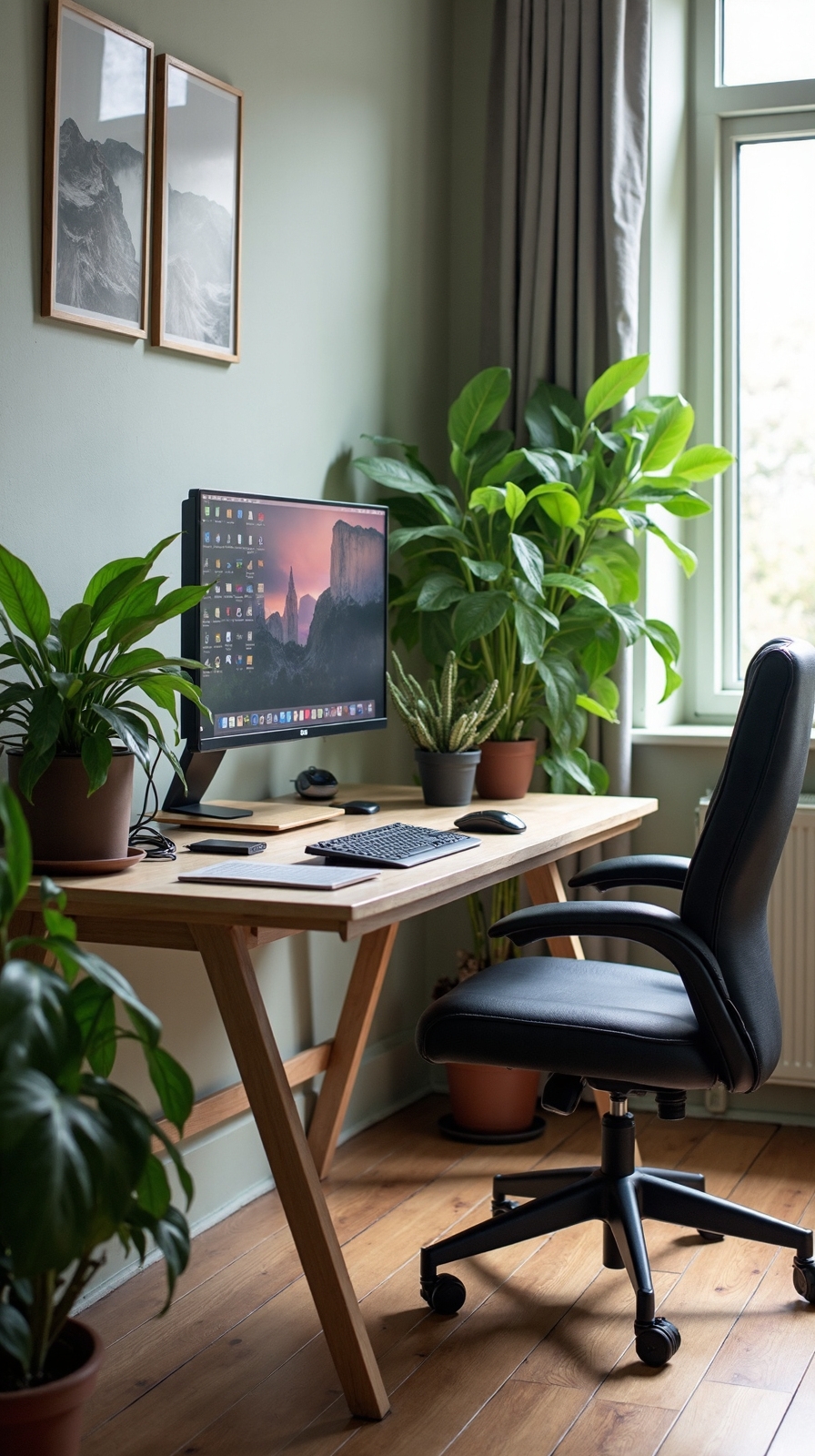
Bringing plants into your home office workspace creates a natural solution that tackles both air purification and stress reduction simultaneously. You’ll breathe cleaner air while enjoying the calming psychological benefits that greenery provides throughout your workday.
When you improve plant selection for your office, consider air purifying plants like snake plants, pothos, or spider plants that require minimal maintenance. These hardy varieties remove toxins such as formaldehyde and benzene from indoor air while thriving in typical office lighting conditions.
Position plants at eye level or nearby your desk where you’ll notice them regularly. The visual break from screens helps reduce mental fatigue, while their presence naturally lowers cortisol levels. You don’t need extensive gardening experience—start with one or two low-maintenance plants and expand your collection as you gain confidence.
Install Anti-Glare Screen Filters to Minimize Eye Strain
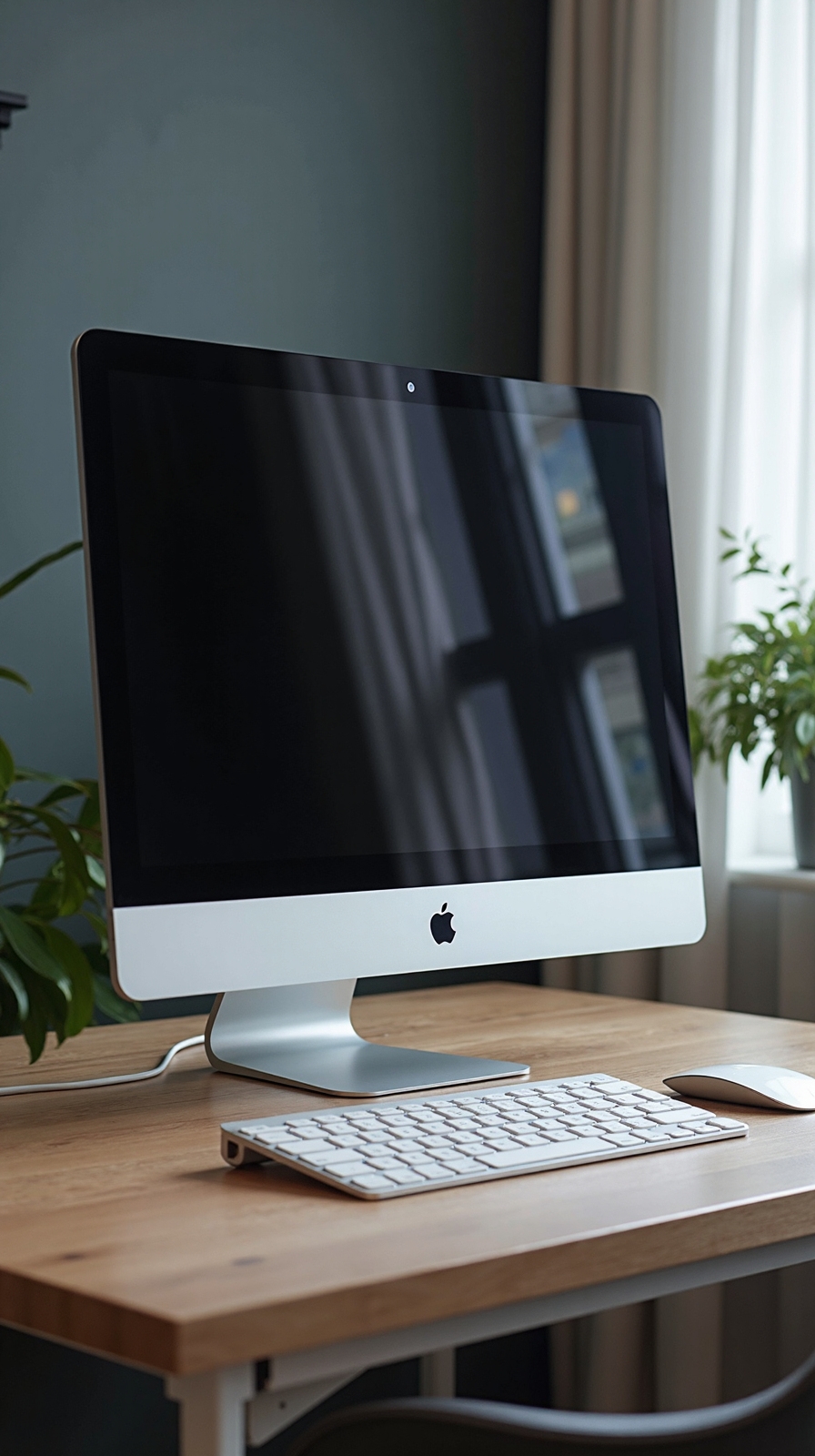
Screen glare cuts through your productivity like a knife, forcing your eyes to work overtime against harsh reflections and bright light sources. You’re constantly squinting, readjusting your position, and battling fatigue that shouldn’t exist in your own workspace.
Anti-glare screen filters offer immediate relief by diffusing harsh light and eliminating reflections that strain your vision. These thin, protective layers attach directly to your monitor’s surface, creating a barrier against environmental light sources. You’ll notice reduced eye fatigue within hours of installation.
Start by selecting filters designed specifically for your monitor size and type. Next, reduce monitor brightness to comfortable levels—filters work best when your screen isn’t competing with surrounding light. Finally, employ screen filters alongside proper lighting placement for maximum effectiveness and visual comfort.
Use a Headset or Speaker Phone for Long Calls
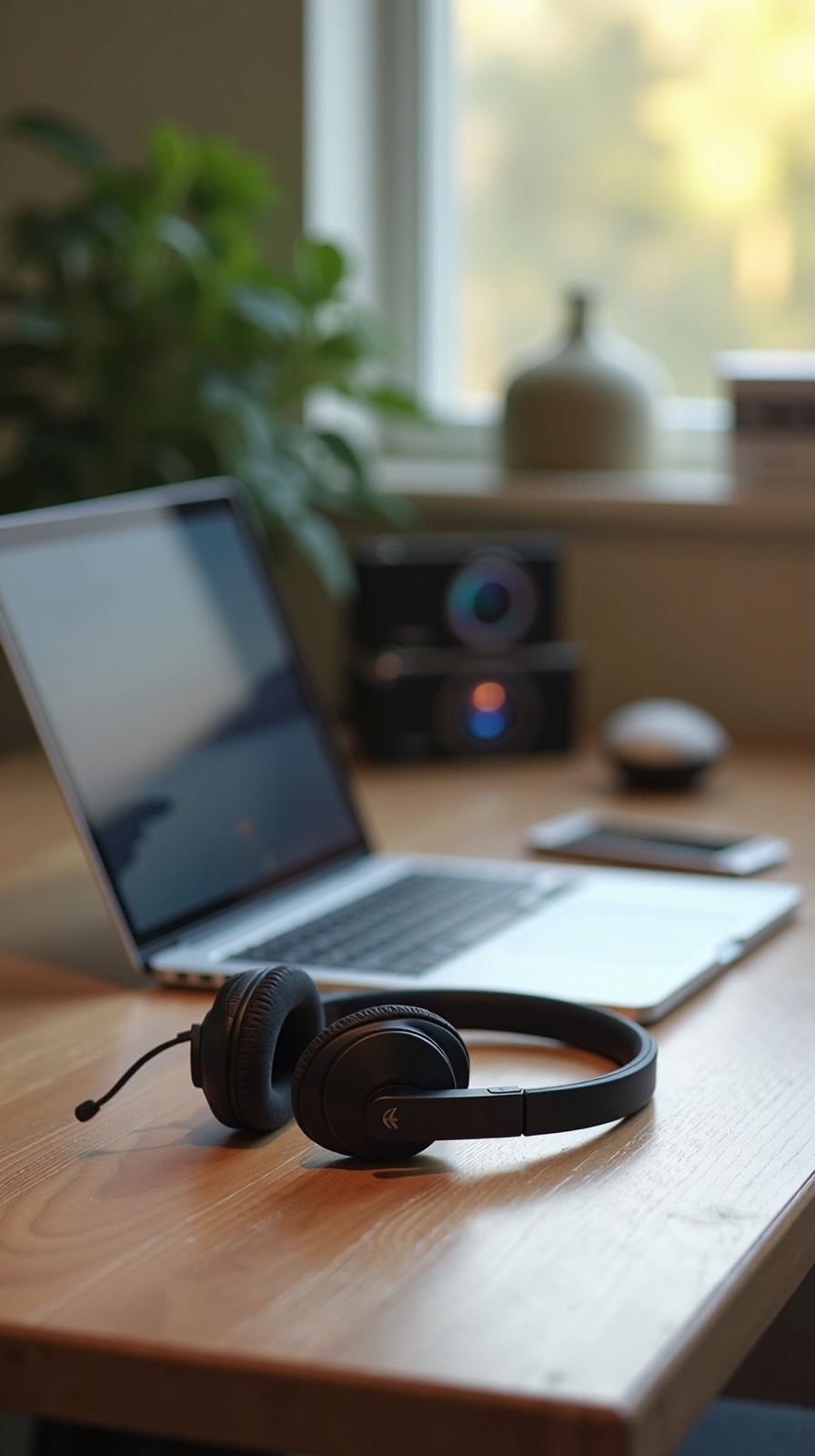
While protecting your eyes from screen strain helps maintain focus, your neck and shoulders face their own challenges during extended phone conversations. Constantly cradling your phone between your ear and shoulder creates muscle tension and misalignment that’ll leave you aching.
A quality headset or speakerphone alters your calling experience by enabling hands free multitasking throughout your workday. You can take notes, reference documents, or complete other tasks without compromising your posture or call quality.
This simple switch delivers increased productivity by allowing you to move naturally during conversations. Wireless headsets give you freedom to stand, stretch, or walk while maintaining professional communication. Choose models with noise cancellation features and comfortable padding for all-day wear. Your neck will thank you, and you’ll accomplish more during every call.
Create a Dedicated Workspace Separate From Relaxation Areas
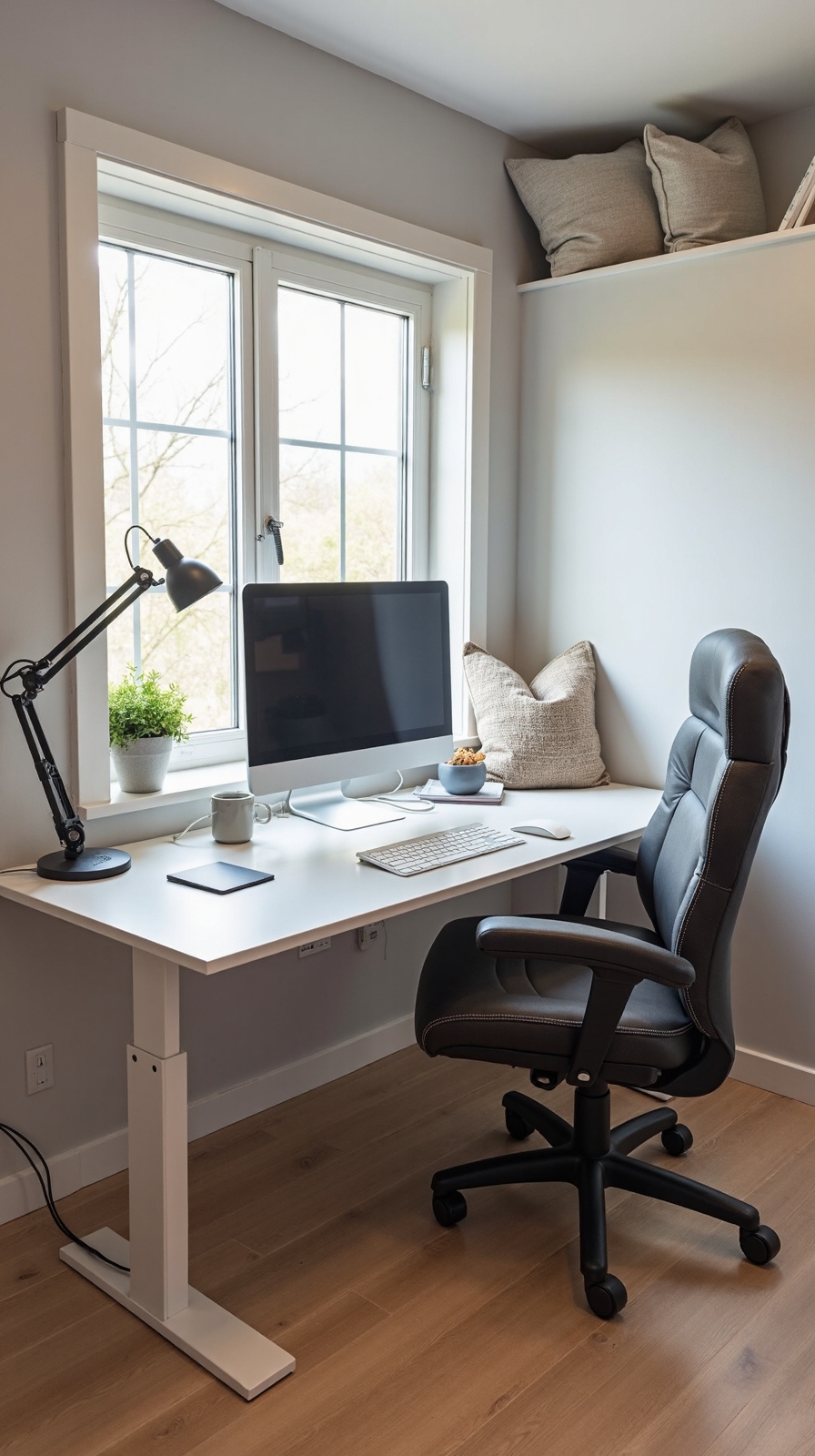
Although your kitchen table might seem convenient for quick tasks, blending work and relaxation spaces creates mental confusion that undermines both productivity and rest.
When you designate a dedicated work zone, you’re establishing clear boundaries that help your brain switch between work and leisure modes. This separation allows you to fully disconnect when your workday ends, protecting your personal time and mental well-being.
Choose a specific corner, spare room, or even a sectioned area where you’ll handle all work-related activities. Set up proper lighting, organize your supplies, and create a distraction free environment by removing televisions, games, or comfort items that signal relaxation.
Your dedicated workspace doesn’t need to be large—it just needs to be yours alone, signaling focus and professionalism.
Maintain Proper Room Temperature and Ventilation
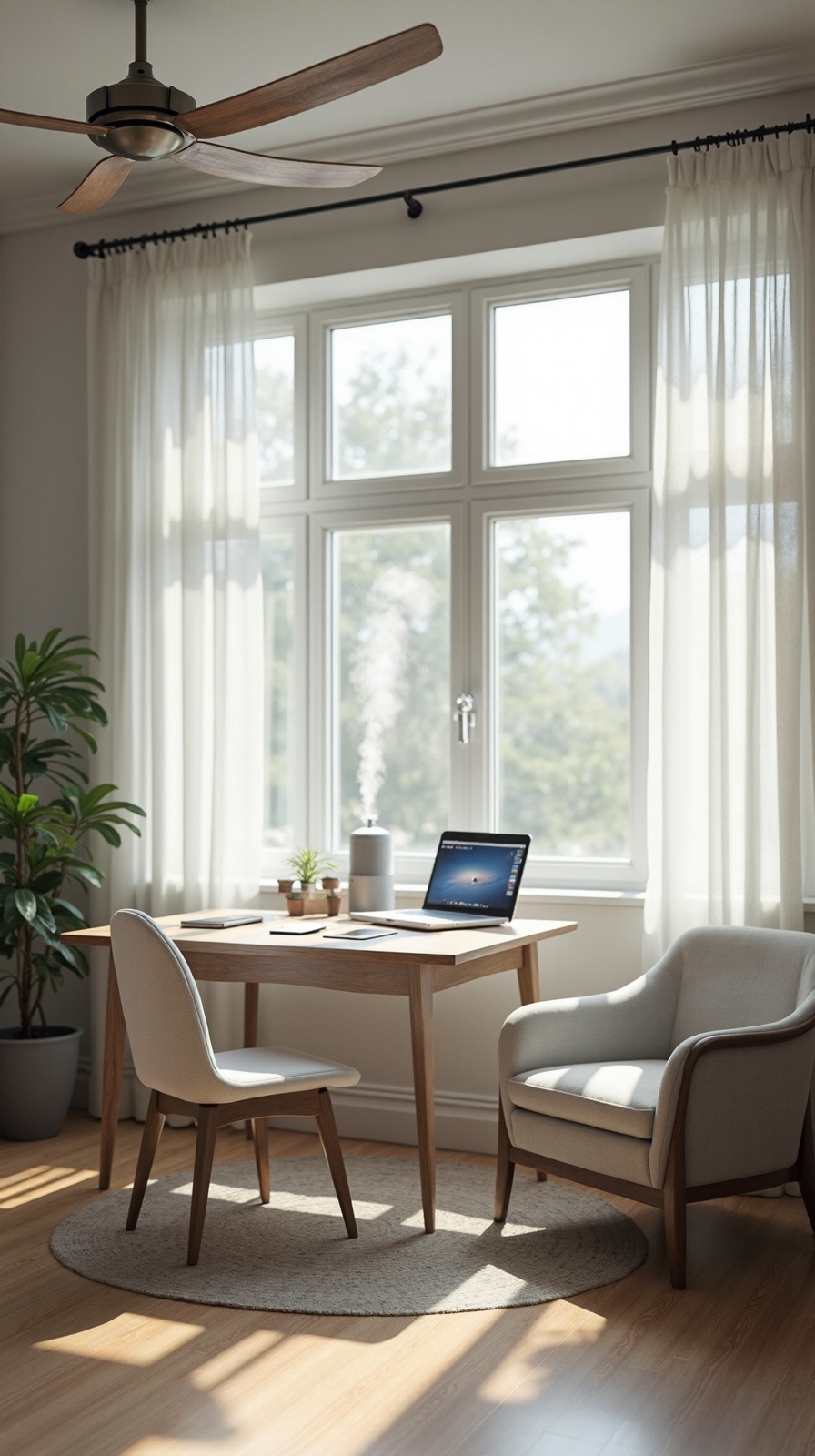
Once you’ve established your dedicated workspace, the environmental conditions within that area directly impact your comfort, focus, and long-term health throughout your workday. Temperature fluctuations cause fatigue and distraction, while poor air quality reduces cognitive performance.
Set your thermostat between 68-72°F for ideal productivity. You’ll maintain consistent energy levels without feeling drowsy or restless. Position a small desk fan or tower fan near your workspace to maintain air circulation, preventing stuffiness that leads to afternoon brain fog.
Monitor indoor humidity using a simple hygrometer. You’ll want to optimize humidity levels between 40-60% to prevent dry eyes, throat irritation, and static electricity buildup. Use a humidifier during winter months and guarantee proper ventilation by opening windows when weather permits. Consider an air purifier if you’re working in a basement or windowless room.
Take Regular Movement Breaks Throughout Your Workday
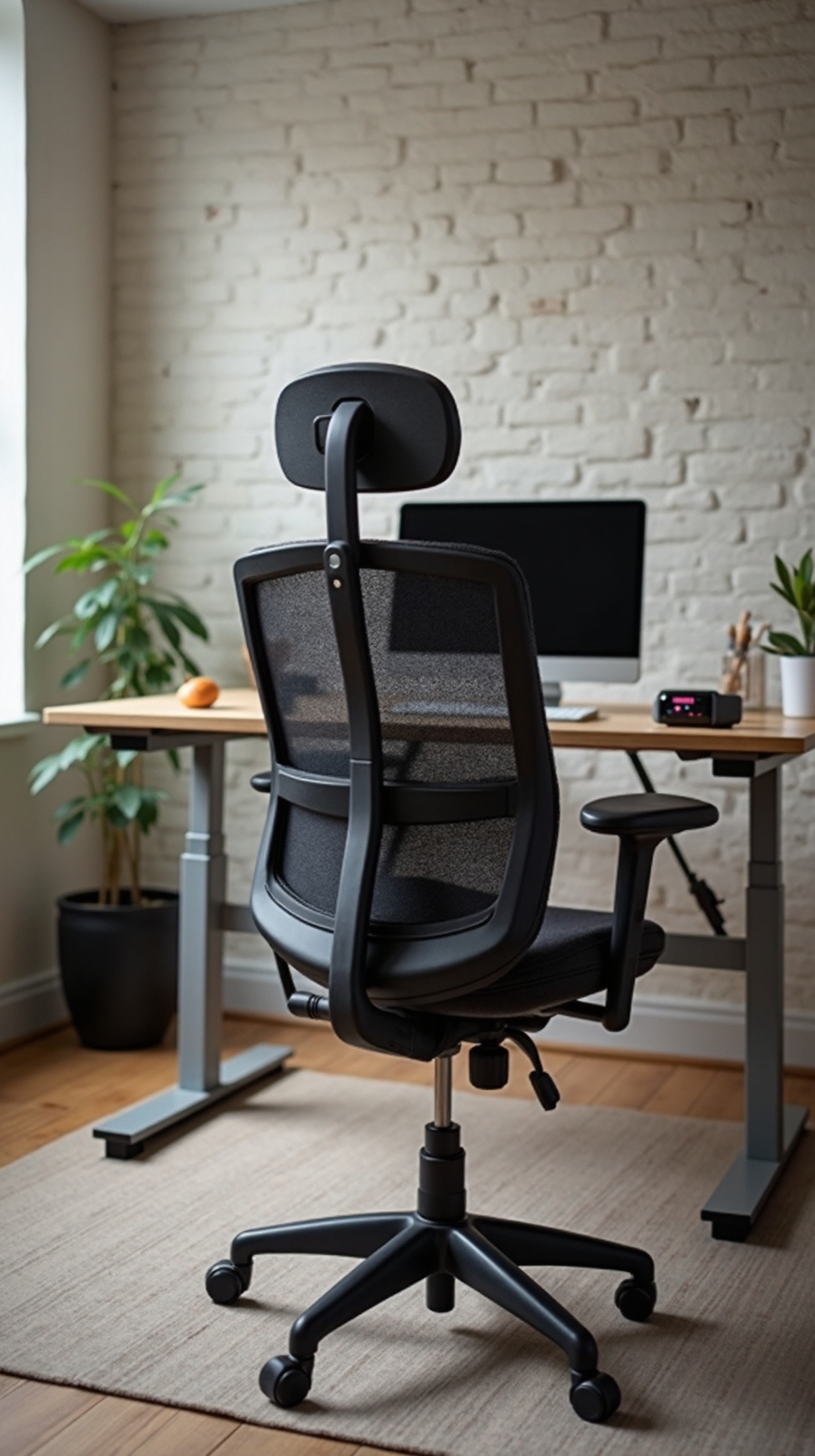
Extended periods of sitting create physical strain that accumulates throughout your workday, leading to muscle stiffness, reduced circulation, and decreased mental alertness. You’ll regain control over your physical comfort by establishing a consistent movement routine that breaks up sedentary stretches.
Set a timer for every 30-45 minutes to remind yourself to take standing breaks. Stand up, walk around your workspace, or step outside for fresh air. These brief interruptions reset your posture and invigorate energy levels naturally.
Incorporate desk stretches between tasks to target problem areas. Roll your shoulders backward, stretch your neck gently from side to side, and rotate your wrists. Extend your legs under your desk and flex your ankles to improve lower body circulation. These simple movements prevent stiffness while keeping you productive and comfortable.
Organize Cables and Wires to Prevent Tripping Hazards
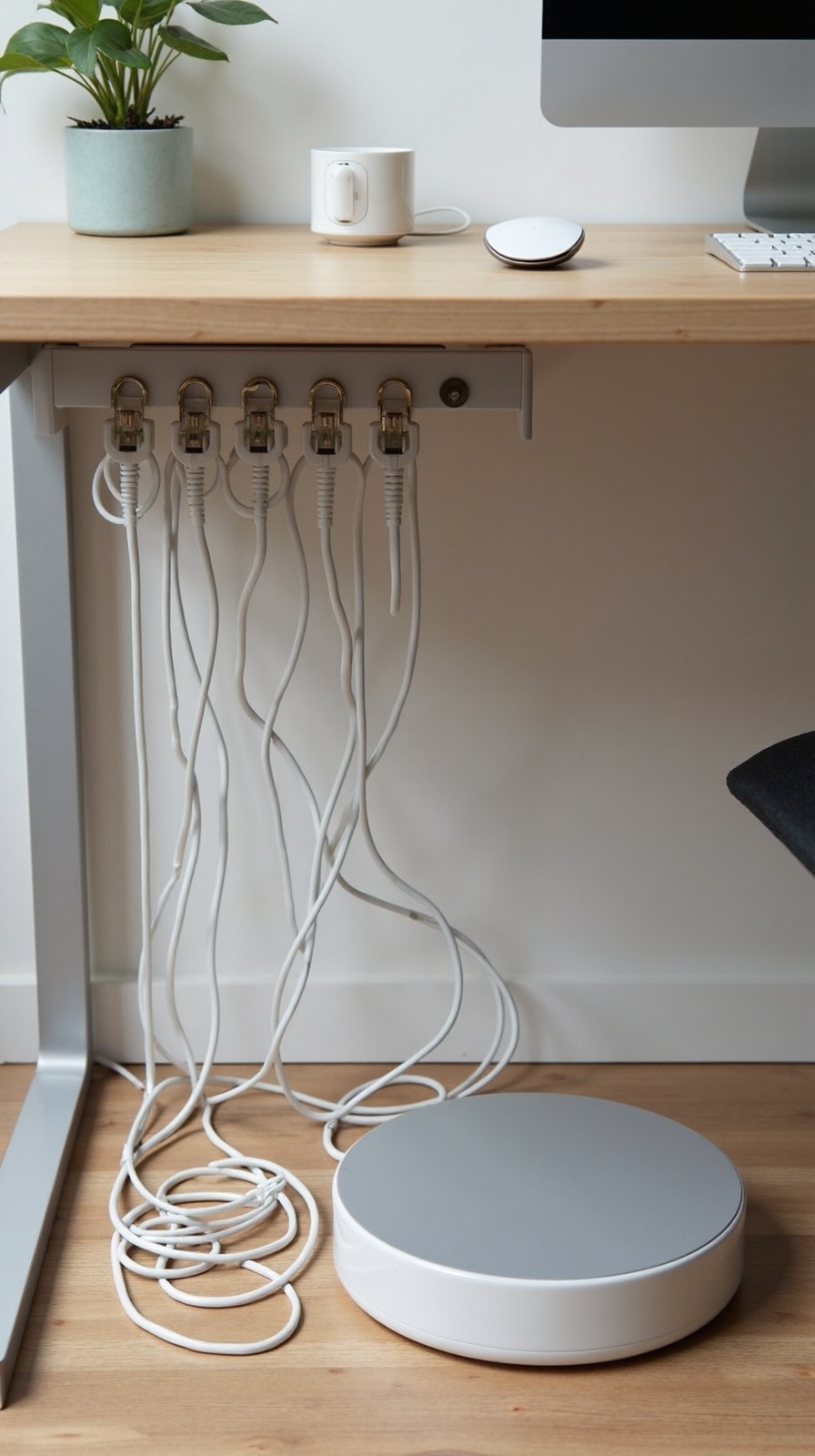
Tangled cables snaking across your home office floor create dangerous tripping hazards that can lead to serious injuries and damaged equipment. You’ll want to manage cord clutter effectively by investing in cable management solutions that keep your workspace both safe and professional-looking.
Start by using cable trays or desk grommets to route wires underneath your work surface. Adhesive cable clips along your desk’s edge will guide cords exactly where they need to go. To conceal unsightly cables completely, consider using cord covers that run along baseboards or walls.
Power strips with surge protection should sit securely on shelves rather than floors. Velcro ties and spiral cable wrap help bundle multiple cords together neatly. These simple organizational steps convert your chaotic workspace into a clean, hazard-free environment.
Conclusion
You’ve now got the essential tools to alter your workspace into an ergonomic haven that supports your health and productivity. Start by implementing one or two changes, like adjusting your monitor height or adding a footrest. Gradually incorporate the remaining improvements over time. Your body will thank you for these thoughtful modifications, and you’ll notice increased comfort and energy throughout your workday. Small changes create significant long-term wellness benefits.